
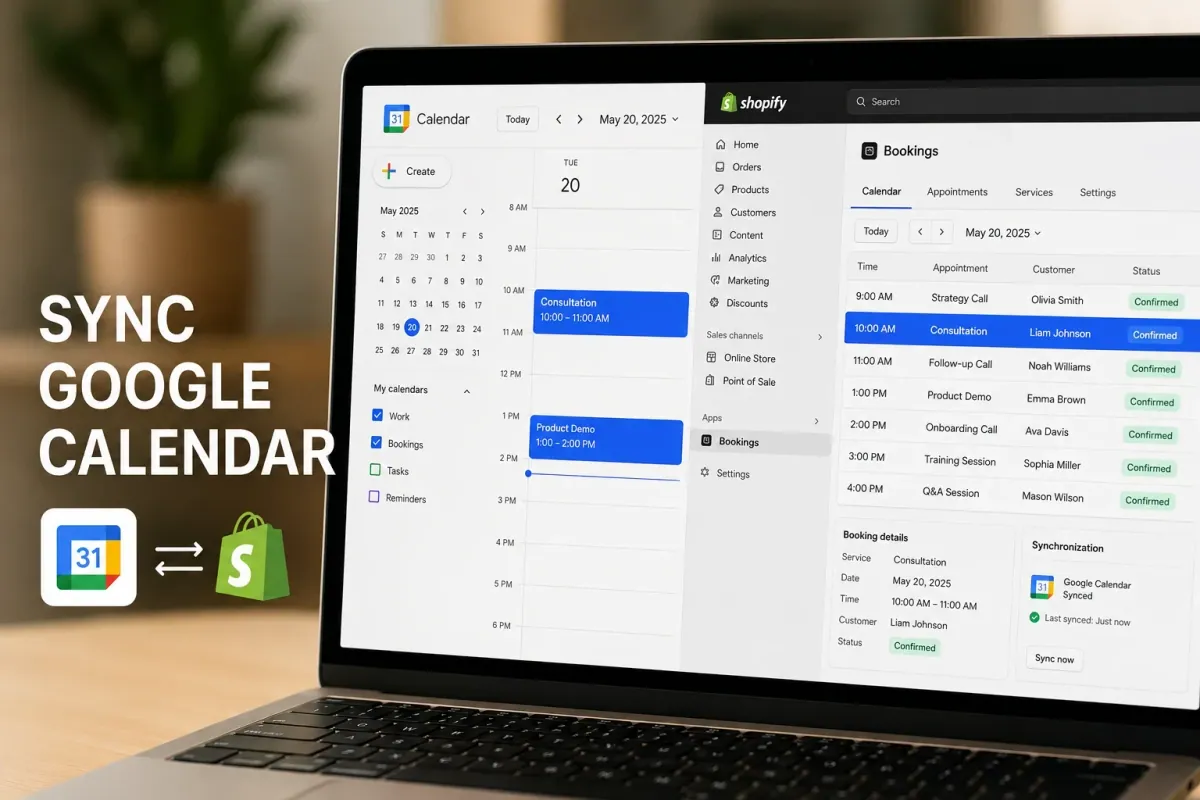
A client books a $150 personal training session on your Shopify site for Thursday at 2 PM, right as you step into a dentist appointment you put on your personal calendar three weeks ago. When two people expect your undivided attention at the exact same hour, somebody ends up furious. For a solo consultant, a 3-chair barbershop in Austin doing 40 appointments a week, or a mobile pet groomer, manual calendar entries fail the moment life gets busy. Linking your Shopify storefront directly with your Google Calendar prevents double bookings, protects your personal schedule, and saves hours of administrative overhead. This guide walks you through setting up real-time calendar synchronization in 2026, along with practical troubleshooting steps for when events stop syncing.
Why real-time calendar synchronization protects your business income
Connecting your storefront calendar to Google Calendar protects your daily schedules from human oversight and double bookings. When a client completes a payment on your store, the appointment should land on your phone immediately, complete with customer notes, contact info, and payment confirmation.
Data across independent service businesses shows that real-time calendar updates combined with automated reminders reduce client no-shows by 15% to 30%. If you charge $90 per session, stopping just two scheduling conflicts a month saves over $2,000 a year in preserved revenue. Additionally, a two-way calendar connection means blocking out personal time on your smartphone automatically closes those slots on your store. You keep control over your working hours without manually toggling store availability back and forth.
Key challenges with Shopify calendar integrations
Setting up calendar sync sounds straightforward, but technical misconfigurations can silently disrupt your daily availability.
One-way sync vs true two-way synchronization
Many basic booking integrations only offer one-way pushing. This means new Shopify appointments appear on your Google Calendar, but events added directly to your Google account do not block off timeslots on your store. If you add a personal doctor appointment to your phone, your store remains open for bookings during that exact window, creating instant conflicts.
Timezone calculation errors
Timezone mismatches cause more support tickets than almost any other setting. If your Shopify store administrative timezone is set to Eastern Standard Time while your personal Google account defaults to Pacific Time, your appointments will shift by three hours. A client who books a 10 AM slot arrives at 1 PM in your local schedule, destroying your day's workflow.
OAuth token expirations and silent sync drops
Google periodically refreshes security permissions for third-party applications. If an app authorization token expires without sending a clear notification, your calendar sync stops silently. Orders continue flowing into your Shopify dashboard, but your personal calendar stops receiving updates until you manually re-authenticate the connection.
What to look for in a calendar sync solution
A robust scheduling application must maintain a continuous, bi-directional data flow between your storefront and personal accounts.
Look for a tool that handles multi-calendar routing if you employ a team. If you operate a wellness clinic with three therapists, the app should assign specific services to individual staff members and check their unique Google calendars before showing open times. Furthermore, the integration should automatically attach web conferencing details, generating custom links via Google Meet or Zoom directly inside the calendar invite.
Your platform should also allow configurable sync intervals and clear status logs. If you want to dive deeper into the complete store configuration process, check out our guide on How to Sell Services on Shopify in 2026: Complete Setup Guide.
How to set up two-way Google Calendar sync on Shopify
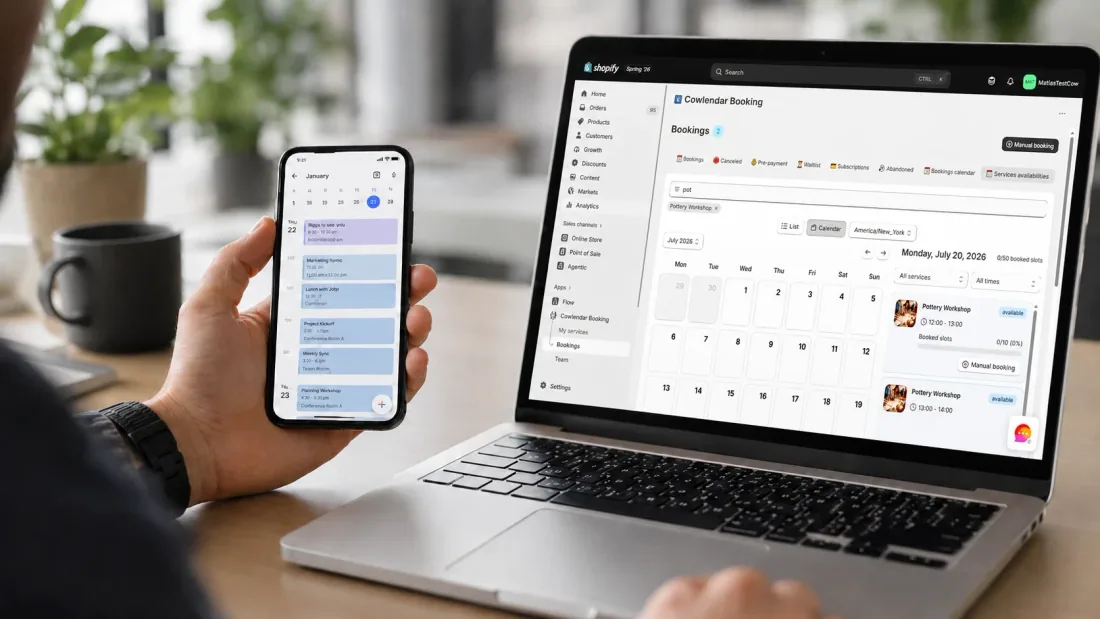
Configuring bi-directional calendar synchronization takes less than ten minutes when following these step-by-step instructions.
First, log into your Shopify admin panel and open your installed booking application. Navigate to the app integrations menu and locate the calendar setup tab. Click the option to connect a external account, which will redirect you to Google's secure account authentication screen.
Second, sign into the specific Google account that holds your primary schedule. Grant the application full permissions to view, edit, and create events on your calendars. These elevated permissions are mandatory for two-way sync, allowing the software to read your external busy blocks and post new customer orders back to your account.
Third, map your specific calendar files to your individual store products. Select your main calendar for single-practitioner setups, or assign distinct employee calendars to specific service items. Toggle on two-way blocking, then set your default buffer times between appointments. Test the connection immediately by adding a test personal event on your phone to confirm that the corresponding time slot vanishes from your live website.
For a detailed visual walkthrough of managing calendar connections and availability, check out How to Sync Google Calendar with Your Shopify Booking System. If you want to see how to troubleshoot API keys and third-party setups, this helpful walkthrough from Setup Guides on YouTube demonstrates how to configure external account links step-by-step.
Best Shopify apps with Google Calendar sync in 2026
Selecting the right app determines how smoothly your calendar updates and whether you waste hours fixing missed connections.
Cowlendar
Our software is built specifically for Shopify merchants who need instant, bulletproof calendar synchronization without complex code overrides. Cowlendar provides native two-way sync with Google Calendar and Outlook, automatically blocking personal events on your website while pushing paid orders to your mobile device instantly. Every paid plan includes all features, including automatic Google Meet link generation, deposit collection, group bookings, and custom intake questions. Plan levels are based strictly on booking volume or revenue: the Starter plan costs €13.99 per month for up to 50 bookings, Basic is €29.99 for 200 bookings, and Growth is €59.99 for 500 bookings. One honest tradeoff is that if you require heavy enterprise-grade physical warehouse inventory tracking across thousands of SKUs, Cowlendar is designed primarily for service scheduling rather than raw manufacturing logistics. It includes a free plan for up to 5 monthly bookings.
Sesami
Sesami is a long-standing appointment booking app on the Shopify App Store that offers strong multi-practitioner scheduling tools. It allows large salons and spas to map individual team members to unique calendar streams and integrate directly with Shopify POS hardware. The entry tier starts at $19 per month, but accessing advanced integrations and custom workflows requires upgrading to their $129 per month Pro plan, which can be an expensive jump for smaller service operators.
Appointo
Appointo by SidePanda is a popular alternative for handling group classes, multi-day courses, and simple service bookings. It supports Google Calendar integration and automatically sends WhatsApp and email reminders to clients. While its starting free tier is attractive, advanced team management options and custom email styling are locked behind paid tiers starting at $12 per month.
Calendly
While Calendly is a widely recognized standalone scheduling tool, duct-taping it to a Shopify store via external embeds creates significant conversion friction. Customers are forced to leave your store checkout flow, making it difficult to collect payments through your native Shopify gateways or track Facebook pixel conversions accurately. Their Standard plan starts at $10 per seat per month.
Troubleshooting guide: Fixing common Google Calendar sync errors
When your calendar stops updating correctly, working through these diagnostic steps will isolate the issue fast.
Problem: Shopify bookings are not appearing on Google Calendar
First, verify your OAuth authorization status inside your app dashboard. Disconnect your Google account, clear your browser cache, and re-authenticate the connection to generate a fresh permission token. Second, check that the order was fully marked as paid or confirmed in Shopify, as some app settings hold back calendar updates until payment authorization completes.
Problem: Personal events on Google Calendar are not blocking store slots
Verify that two-way blocking is explicitly enabled in your app settings, as many systems default to one-way notifications upon installation. Next, check the visibility status of your personal Google Calendar event. Events marked as "Free" or "Transparent" inside Google Calendar will not block availability; the event status must be set to "Busy".
Problem: Appointment times are off by a few hours
Navigate to your Shopify admin settings under Store Details and review your store timezone. Next, open your Google Calendar settings and check your account primary timezone. Both timezones must match your actual physical location, or the booking app will miscalculate the UTC offset during conversion. To understand how to handle conflicts caused by third-party calendar lags, review our guide on How to Prevent Double Bookings on Shopify with Google Calendar Sync.

FAQ
Does updating an event on Google Calendar automatically update the customer's booking in Shopify?
It depends on your app settings. With advanced tools like Cowlendar, moving an appointment block on your Google Calendar can automatically adjust the event time and notify the customer of the schedule change. Basic one-way apps require you to reschedule the appointment directly inside your Shopify app admin.
What happens if two customers try to book the exact same time slot simultaneously?
A native booking app places a temporary hold on the selected time slot the moment a customer opens the checkout modal. If two users click the same time within milliseconds, the app processes the first completed checkout transaction and immediately updates the system to mark the remaining slot as unavailable.
Can I connect multiple personal Google Calendars to a single Shopify store?
Yes, multi-practitioner booking apps allow you to route different service items to separate Google accounts. For example, a hair salon can link Stylist A's service products to Stylist A's personal calendar, while Stylist B's bookings route exclusively to Stylist B's account.
Why did my Google Calendar sync suddenly stop working after months of working fine?
Google periodically revokes security tokens for third-party integrations if an account password changes, security settings update, or authorization tokens expire. Re-authenticating your Google account inside your app dashboard fixes the problem in under two minutes.
Conclusion
Syncing your Shopify bookings with Google Calendar is the most reliable way to protect your time, eliminate double bookings, and deliver a smooth experience for your clients. By establishing a two-way synchronization flow and verifying your timezone settings, you can automate your daily scheduling with complete confidence. Install Cowlendar today to link your storefront with Google Calendar, automate your customer appointments, and eliminate double bookings for good.
Originally published on the Cowlendar blog. This article keeps its original publication history; the page layout has been refreshed.
Originally published Jul 20, 2026.



 Built for Shopify


