A freelance photographer in Portland books client sessions through her Shopify store and manages family commitments in Google Calendar. One Thursday she had a school pickup at 3pm in her personal Google Calendar. A client booked a shoot that started at 2:30pm. Without two-way sync, Shopify didn't know about the school pickup. The client got a confirmation. The photographer got a conflict. That's the most common cause of double bookings on Shopify booking stores: the system doesn't know what you've already committed to elsewhere. This guide covers exactly how to connect Google Calendar to Cowlendar and, critically, how to turn on the two-way sync that actually prevents this scenario.
Why double bookings still happen with a booking app installed
A booking app eliminates one category of double bookings: two customers booking the same slot through your Shopify store. That problem is solved the moment you install the app. What it doesn't solve by default is the second category: a customer booking a slot you've already committed to in your personal calendar.
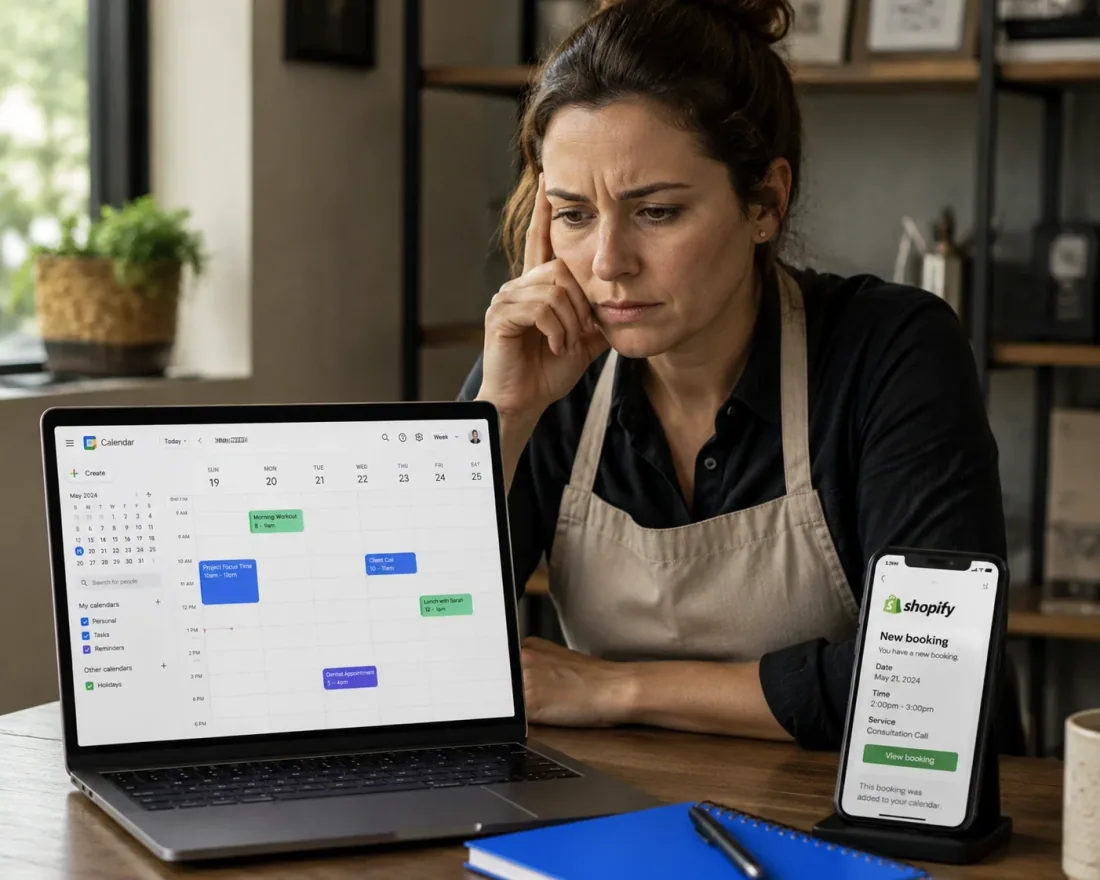
Without any calendar sync, your Shopify booking availability and your personal schedule live in completely separate systems. You block Tuesday morning in Google Calendar for a dentist appointment. Your Shopify store doesn't know. A customer books Tuesday morning. You now have two commitments for the same time.
This happens constantly with solo service providers. A personal trainer running 30 client sessions a week also has gym classes to attend, equipment deliveries to sign for, school pickups to handle. None of those show up in Shopify's availability unless they're manually blocked as break times. That's hours of admin work per week, and one missed block creates a conflict.
It also happens in multi-staff businesses where each team member manages their own personal calendar. A 4-person photography studio where each photographer has their own shooting schedule, personal commitments, and equipment checkout times needs each person's Google Calendar feeding into the booking system, not just the studio's main calendar.
The third common scenario is the multi-location or multi-platform business. A massage therapist who takes walk-in appointments at a spa three days a week and online bookings through their Shopify store the other two days has availability that changes daily. Without a centralized calendar controlling both schedules, the spa days can bleed into Shopify's available slots and cause overbooking. Two-way Google Calendar sync solves this because any time you block in Google (whether it's a spa shift or a doctor's appointment) immediately becomes unavailable on your Shopify booking page.
What 1-way sync does vs. what 2-way sync actually prevents
When you connect Google Calendar to Cowlendar without enabling two-way sync, you get 1-way sync: every Cowlendar booking appears as an event in your Google Calendar. Your Google Calendar becomes a read-only view of your bookings.
That's useful for staying informed. It's not useful for preventing conflicts. Your personal appointments, family events, and other commitments still don't communicate back to Cowlendar.
Two-way sync reverses the data flow. When two-way sync is enabled, any event or task you add to your connected Google Calendar automatically blocks that timeslot in Cowlendar's availability. A customer visiting your booking page won't see that slot as available. They physically can't book a conflicting time.
That's the entire mechanism: your personal calendar becomes a live input to your booking availability, not just a readout of what clients have booked. The setup is one toggle, shown after you connect your Google account. But you have to know it exists and turn it on manually. Many merchants connect Google Calendar, assume the conflict prevention is active, and only discover it's not when the first conflict happens.
There's a secondary benefit worth naming: because every Cowlendar booking also appears as an event in your Google Calendar when you're synced, customers who receive the confirmation email automatically get a Google Calendar invite they can add to their own calendar with one click. That's a meaningful no-show reduction tool on top of the scheduling conflict prevention, since clients who add a booking to their personal calendar are significantly more likely to remember it. For a complete approach to no-show reduction, Cowlendar's guide to reducing no-shows on your Shopify booking store covers the reminder and deposit settings that work alongside Google Calendar sync.
Step 1: Connect your Google account to Cowlendar
Google Calendar sync is available on the Elite plan ($25.99/month). If you're on the free plan or Pro plan, you'll need to upgrade before the option is available.
With the Elite plan active, navigate to your Shopify admin. Click Apps in the left panel, then open Cowlendar. Click Team, then click Edit next to Cowlendar admin (your main admin account).
Inside the admin edit screen, you'll see the option to connect a Google account. Click Connect Google and complete the OAuth authorization flow: this is the standard Google permission screen where you grant Cowlendar access to your Google Calendar. Once authorized, your Google account is connected and new Cowlendar bookings will begin appearing in your Google Calendar automatically.
One important setup detail from Cowlendar's documentation: every booking needs an associated customer email for a Google Calendar event to be created. In your Cowlendar service settings, go to the Advanced tab and confirm that "What contact information to ask?" is set to Email or to Email & Phone. If it's set to Phone only, bookings won't generate Google Calendar events, and the sync won't work correctly even after connecting.
The first Google account you connect acts as the super admin for the entire sync. All team member syncs flow through this account. Don't change the main admin email later without migrating your data first: Cowlendar's documentation flags this as a cause of booking import failures.
Step 2: Enable two-way sync
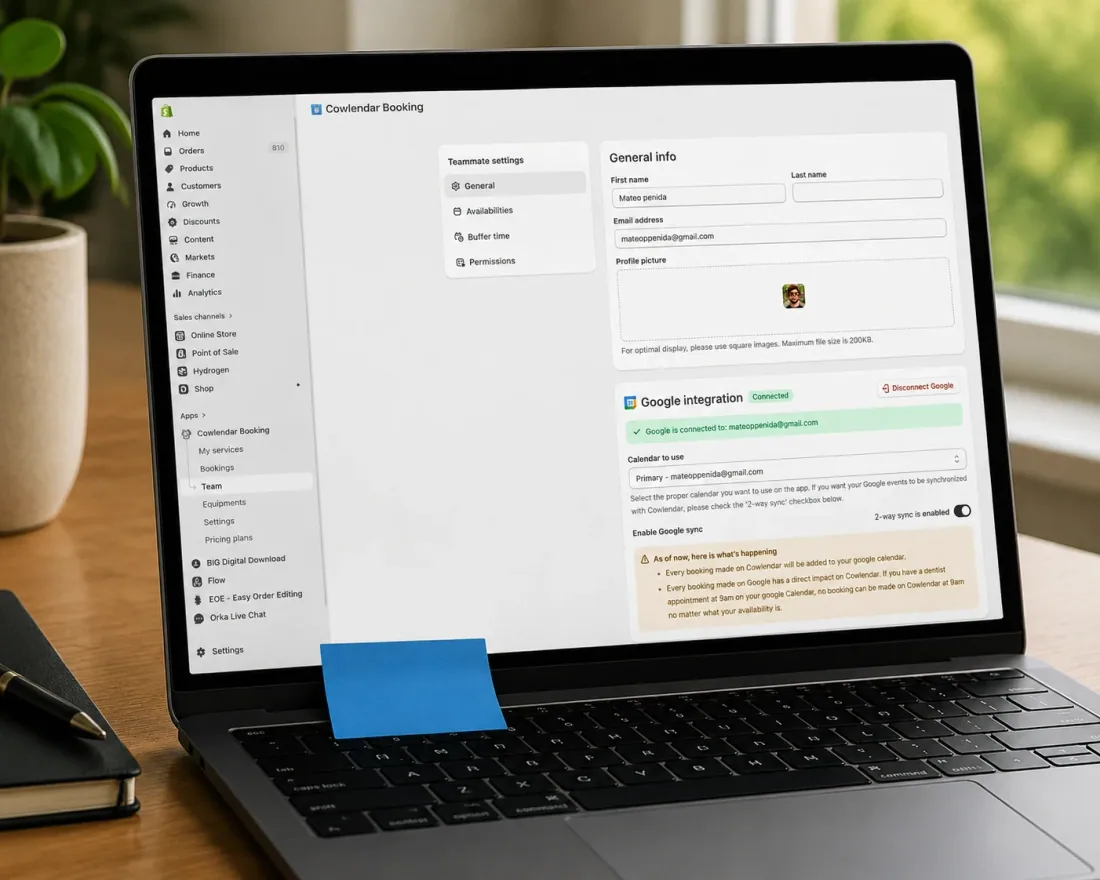
After connecting your Google account, stay on the admin edit screen. You'll now see a Two-Way Sync toggle that wasn't visible before the connection. Toggle it on.
That's the entire step. Once two-way sync is active, any event you add to your connected Google Calendar will block that timeslot in Cowlendar. Add a dentist appointment on Thursday at 3pm and that slot disappears from your customer-facing booking calendar. The photographer's school pickup problem is solved.
Test it immediately after enabling. Add a test event in your Google Calendar for a time slot that's currently showing as available in your Cowlendar booking widget. Refresh your store's booking page and confirm that slot is no longer bookable. If it still shows as available after a few minutes, double-check that the correct Google account is connected and the Two-Way Sync toggle is saved.
One timing note worth understanding: sync isn't instantaneous. There can be a delay of a few minutes between when you add a Google Calendar event and when Cowlendar reflects the block. For most businesses, this delay is unimportant since clients are unlikely to be viewing your booking page at the exact moment you're adding a personal commitment. For very high-volume stores (dozens of bookings per hour), the slight delay is worth knowing about. In practice, it rarely causes issues in a service business context.
For a deeper look at what to do when a double booking slips through despite sync being active, Cowlendar's troubleshooting guide for double bookings with Google Calendar covers the common causes and specific fixes.
Multi-staff Google Calendar setup
For a business with 2 or more service providers, each person's Google Calendar needs to be connected independently through their individual teammate profile, not just through the main admin account.
The admin's Google Calendar handles the admin's personal conflicts. It doesn't block availability for other team members. A salon with 3 stylists where only the owner's Google Calendar is connected will still get double bookings for Stylist 2 and Stylist 3 if their personal calendars have conflicts.
The setup for additional team members: go to Apps > Cowlendar > Team. For each teammate, click Edit and connect their individual Google account. Each team member can also do this themselves if you've given them teammate access, which avoids you needing to collect and enter everyone's Google credentials.
A few things to keep in mind for multi-staff setups, sourced directly from Cowlendar's documentation: if the main admin Google account becomes disconnected, it disrupts the sync for all team members, not just the admin. Monitor the admin connection status periodically, especially after password changes or Google account security events that can revoke OAuth access. And all team member syncs are routed through the main admin account as the host: you can think of the admin's Gmail as the calendar that everything is managed through.
If you run multiple locations and want each location to use a dedicated Google Calendar, create separate calendars within the same Google account and connect the appropriate one to each service or team member setup. A photography studio with a downtown location and a studio location can use two distinct Google Calendars under one connected account rather than two separate Google accounts.
One more practical consideration for teams: make sure each team member's booking form collects their customer's email. This isn't just a GDPR-friendly practice. Cowlendar requires an associated email on each booking to create the corresponding Google Calendar event. If any team member's service is set to collect phone-only, their bookings won't generate calendar events, which means those bookings won't appear in Google Calendar and won't be reflected in any downstream Google Calendar sync logic. Check each team member's service settings in the Advanced tab independently, not just the main admin service.
Common sync issues that cause double bookings to slip through
The admin account disconnects. Google OAuth tokens can expire or get revoked, especially after a password change or a Google security event. When the admin account disconnects, Cowlendar stops creating calendar events for new bookings, and the two-way sync that blocks personal conflicts stops working. Both directions of the sync go down simultaneously. Check your connection status in the Team settings monthly or any time you change your Google account password.
Email isn't collected in the booking form. As noted above: if your booking form doesn't require an email address, Cowlendar can't create a Google Calendar event for the booking, because Google requires an email to associate with the event. The booking confirms in Cowlendar but nothing appears in Google Calendar. The fix is straightforward: in your service's Advanced settings, set "What contact information to ask?" to Email or Email & Phone.
The two-way sync toggle was never enabled. This is the most common issue: the merchant connected Google Calendar, saw bookings appearing in their Google Calendar, assumed conflict prevention was active, and never turned on the two-way toggle. If your Google Calendar personal events don't block Cowlendar availability, confirm the toggle is on in your admin edit screen, not just assumed to be on because the connection is active.
A team member's Google account is disconnected but the admin's isn't. If Stylist 2's Google account disconnects, Cowlendar stops syncing that specific team member's bookings to their personal calendar and stops reading their personal events as blocks. The admin's sync continues unaffected. Check each team member's connection status individually, not just the admin's, when you notice availability conflicts for a specific staff member.
The wrong Google Calendar is blocking availability. This one is less common but worth checking if you use multiple Google Calendars within the same Google account. When 2-way sync reads your Google Calendar, it reads all events across all calendars in that account, not just the primary calendar. This is usually what you want, but if you have a shared team calendar with events that shouldn't block your personal availability, consider whether those events belong in the connected Google account or should be managed through a separate one. The sync doesn't let you selectively choose which Google Calendars to include, so the entire connected account's calendar events will block Cowlendar availability once 2-way sync is on.
FAQ
Is Google Calendar sync free on Cowlendar?
No. Google Calendar sync (both one-way and two-way) is an Elite plan feature, available at $25.99/month. The free plan and Pro plan ($13.99/month) don't include calendar integration.
Does two-way sync work in real time?
There can be a delay of up to a few minutes between adding an event in Google Calendar and having that block appear in Cowlendar. In most service business contexts this delay is insignificant, but it's worth knowing about for high-frequency scheduling situations. Cowlendar bookings appear in Google Calendar immediately once the sync is active.
What happens if I disconnect my Google account?
Disconnecting the admin's Google account stops both directions of the sync: Cowlendar bookings stop appearing in your Google Calendar, and your personal Google Calendar events stop blocking Cowlendar availability. Reconnecting restores both directions going forward, but any events that weren't synced during the disconnection period won't be retroactively added.
Can each team member connect their own Google Calendar?
Yes. Each teammate in Cowlendar has their own profile where they can connect an individual Google account. When connected, bookings assigned to that team member sync to their personal Google Calendar, and their personal Google Calendar events block their availability in Cowlendar. Setup instructions for each team member follow the same steps as the admin connection.
My Google Calendar events aren't blocking Cowlendar availability. What's wrong?
Three things to check in order: first, confirm the Two-Way Sync toggle is on in the admin edit screen (not just the connection, the toggle). Second, confirm the connected Google account is the same one where you're adding the test events. Third, confirm email is required in your booking form (Advanced settings > "What contact information to ask?" = Email). If all three are correct and it still isn't working, the admin OAuth connection may have expired and needs to be reconnected.
Conclusion
Most double bookings on Shopify booking stores come from a simple gap: the booking system knows what clients have reserved, but not what the service provider has already committed to personally. Two-way Google Calendar sync closes that gap by making your personal calendar a live input to your Shopify availability, not just a passive display of your client bookings. The setup is a two-step process: connect your Google account through the Team settings on the Elite plan, then enable the two-way sync toggle that appears after connecting. Test it before your next week of client bookings, and read Cowlendar's guide to handling cancellations and rescheduling if you need to put a process in place for the rare conflicts that still get through. Install or upgrade to Cowlendar's Elite plan and run the setup before your next booking comes in.
Originally published on the Cowlendar blog. This article keeps its original publication history; the page layout has been refreshed.
Originally published Jun 24, 2026.




 Built for Shopify


