
A tattoo studio in Portland recently had to refund a $400 session because an artist's personal dental appointment didn't block off their Shopify availability. They were using a basic booking app that only pushed appointments to Google, but didn't pull busy times back. If you are running a service business, a one-way street isn't a sync. It is a liability.
You need a true two-way synchronization where your personal calendar and your Shopify store actually talk to each other in real-time. By the end of this guide, you will know exactly how to set up a two-way sync that reliably blocks time slots across your entire staff.
Why two-way Google Calendar sync matters for service businesses
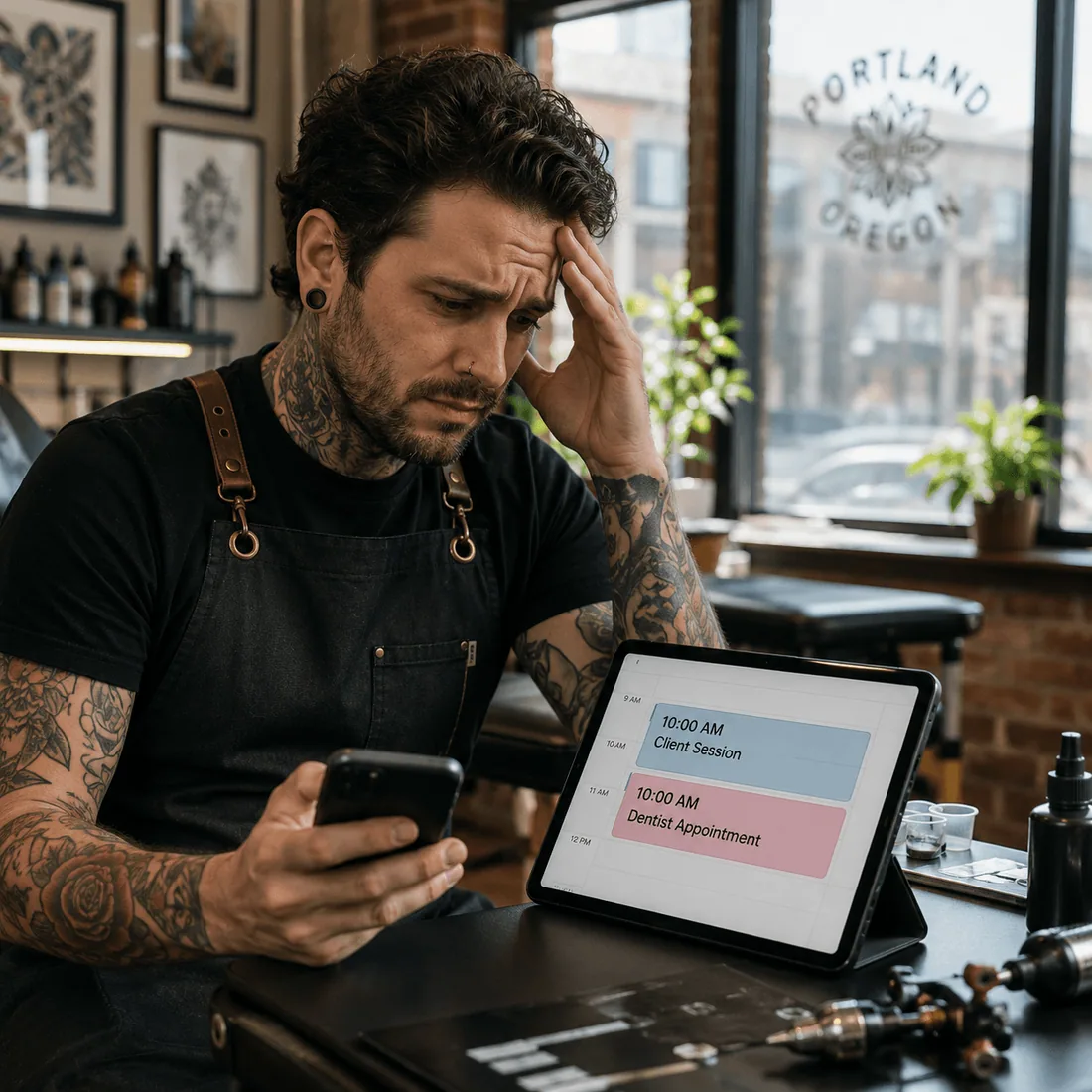
A one-way sync just sends your Shopify bookings to your Google Calendar. A two-way sync reads your Google Calendar and actively blocks out time slots on your Shopify store when you have a doctor's appointment, a lunch break, or a personal conflict.
The real cost of getting this wrong is brutal. You lose revenue from double bookings, you burn out your staff by overriding their personal time, and you eat the cost of refunds. I spent weeks detailing the complexities of Google Calendar integration for our internal technical manuals, and the truth is that API limitations and synchronization delays are where most basic apps fail. If the sync takes 10 minutes to update during a rush, you will get double-booked.
Key challenges of calendar synchronization

The host versus staff routing problem. Most business owners have one main store email but multiple staff members with their own personal Gmails. Routing the availability of 5 different people into a single checkout flow without exposing their private event details is a massive technical hurdle.
Synchronization delays. Not all two-way syncs are instant. Because of strict API limitations, some apps only check for updates every 15 minutes. That delay is a huge vulnerability for high-volume studios.
Transfer lockouts. Google does not allow the transfer of events from one Gmail account to another for security reasons. If you set up your sync under the wrong main admin email, migrating existing bookings later becomes a nightmare.
Essential features for solving the sync problem
Look for real two-way pulling. The app must explicitly state that Google events and tasks will block dates and times inside the Shopify calendar.
You need staff-level account connection. The system should allow a main "host" Gmail to manage the top-level calendar while letting individual teammates connect their own Google accounts securely.
It must respect buffer times during sync. If a Google event ends at 2pm, the app should be smart enough to apply your standard 15-minute cleanup buffer before opening the next Shopify slot.
How to set up Google Calendar two-way sync on Shopify
1. Install a Shopify booking app with native Google Calendar sync
Start with an app that explicitly supports two-way sync, not just “calendar integration.”
Cowlendar, BookThatApp, Sesami, Tipo, and Easy Appointment Booking all support Google Calendar integrations in different ways.
2. Create your first service
Inside Cowlendar, services are tied directly to Shopify products.
You’ll create a product first, then connect it to the booking setup. The official setup walkthrough is here: https://penida.gitbook.io/cowlendar-help/beginners-guide/create-your-first-service-on-cowlendar
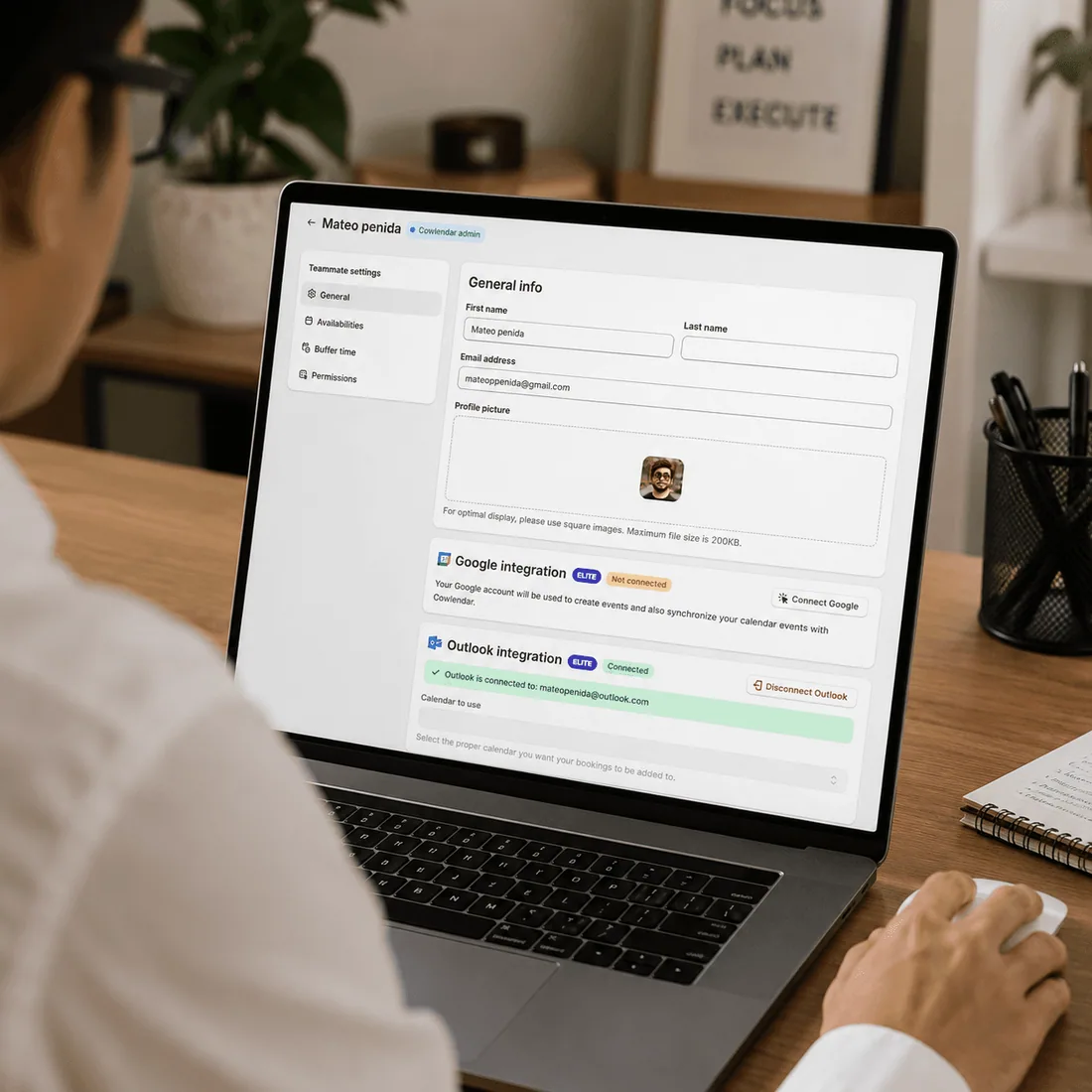
3. Connect each staff member’s Google Calendar
Do not use one shared Google Calendar unless your entire team works identical schedules.
Each instructor, stylist, or consultant should sync their own calendar separately so external events block availability correctly.
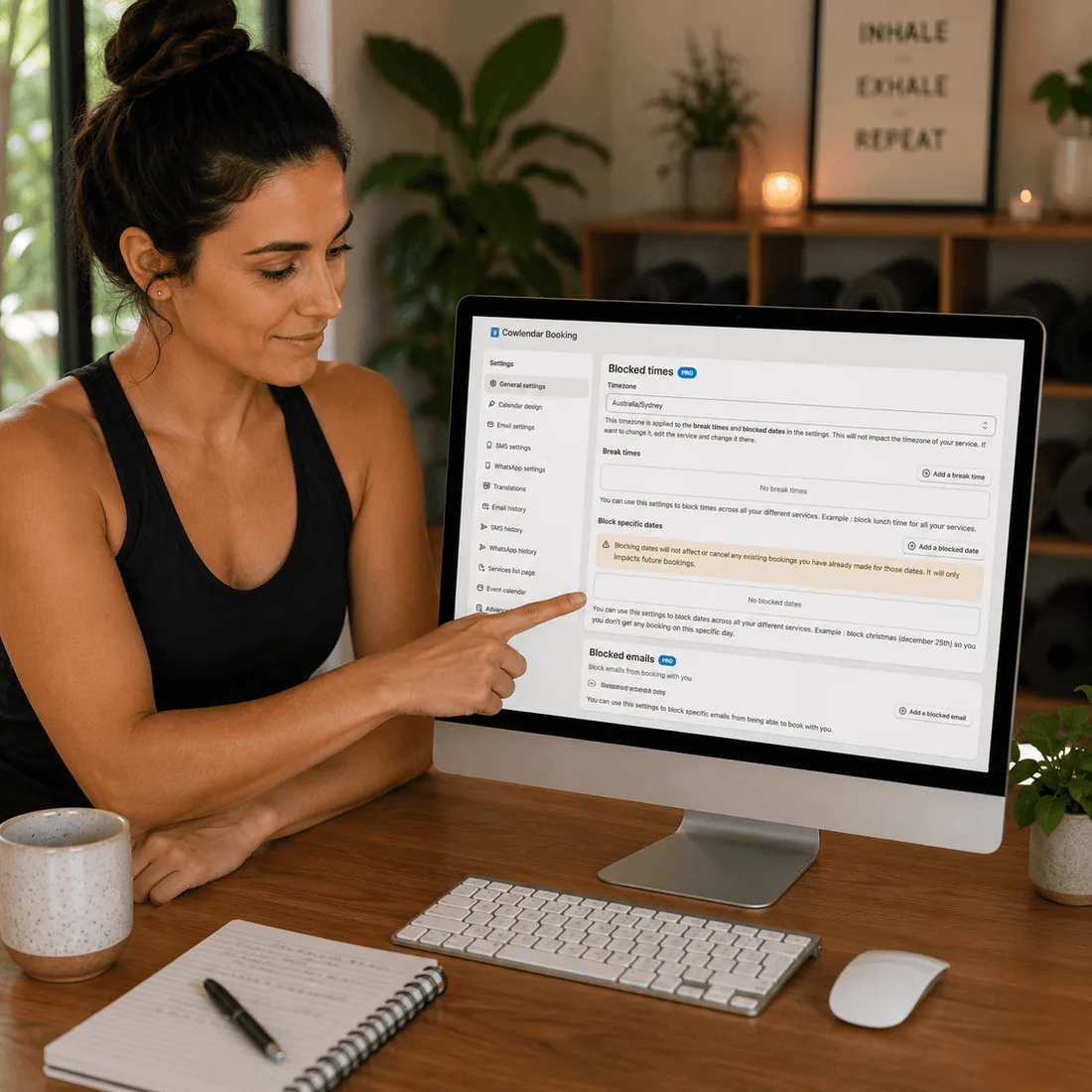
4. Enable two-way blocking rules
This is the critical step merchants skip.
Make sure external Google Calendar events are configured to block Shopify booking availability automatically. Otherwise, the sync is only informational.
5. Add buffer time rules
Configure cleanup, travel, or prep windows before and after bookings.
For salons and clinics, even a 10-minute buffer reduces scheduling stress significantly.
6. Test the sync manually
Create a fake booking inside Shopify.
Then create a fake Google Calendar event directly inside the connected calendar and verify the booking slot disappears from your storefront.
Do this before going live. Always.
7. Add booking links across your storefront
Cowlendar supports direct links, inline widgets, and homepage integrations depending on how you want customers to book.
Best Shopify apps for Google Calendar sync
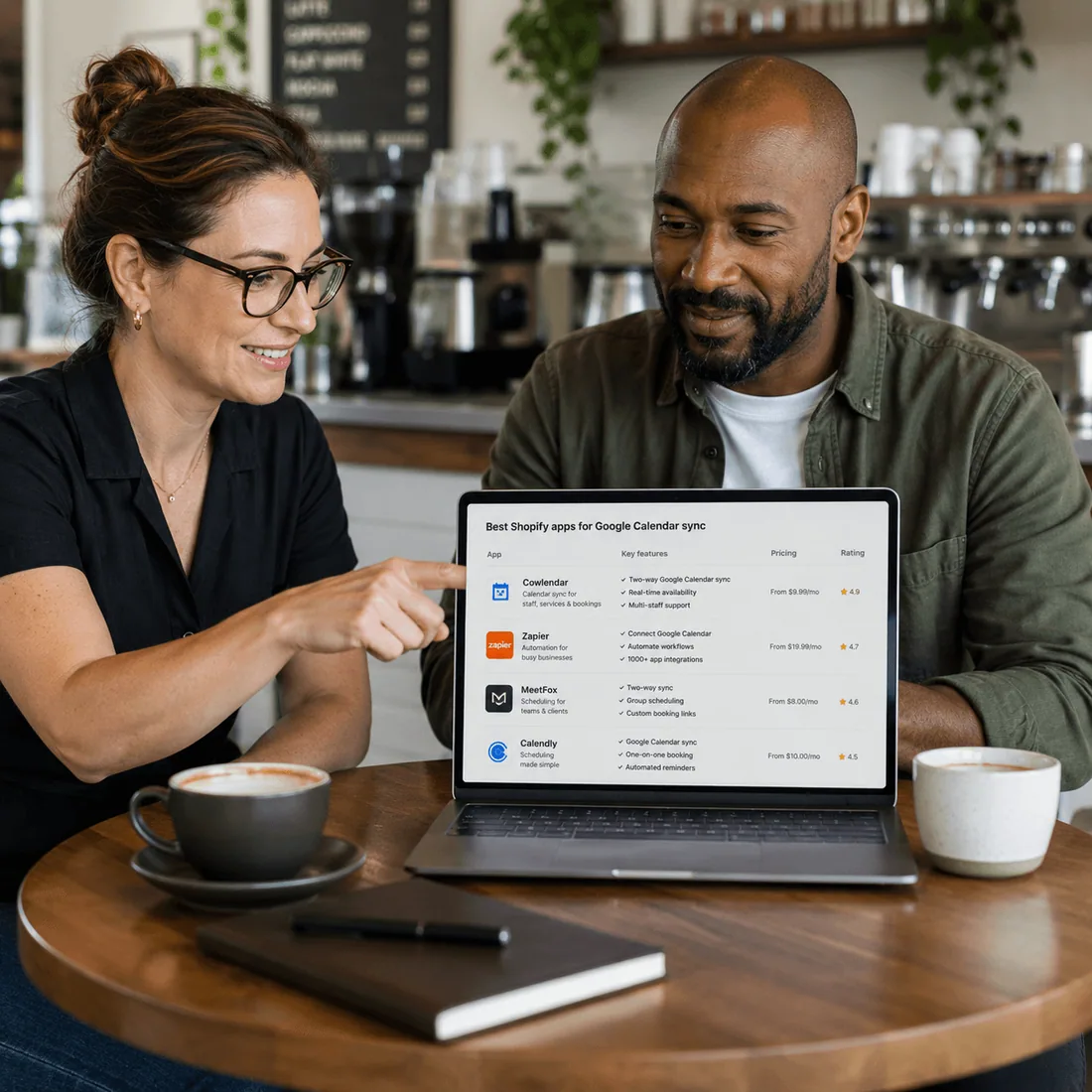
Cowlendar
Best for mainstream service businesses like salons, studios, and coaches who need reliable staff routing.
Pros: True 2-way sync that instantly blocks dates and times, clear host email structure for team management, and robust deposit handling.
Cons: Google Calendar sync requires the Elite plan ($25.99/month), and changing the main admin email after setup can cause issues importing existing bookings.
App Store: https://apps.shopify.com/cowlendar
Price range: Free to $39.99/month
BookThatApp (BTA)
Best for heavy multi-day rental businesses with massive, complex physical inventory.
Pros: Rock-solid stability for complex rental math, granular lead time buffers, and reliable two-way sync with both Google and iCal.
Cons: The interface feels heavily dated. The learning curve is steep for a simple service business.
App Store: https://apps.shopify.com/bookthatapp
Price range: $25/month
Sesami
Best for merchants who need highly automated, custom booking flows.
Pros: Sesami Flows allows for intense automation, great API access, and multiple calendar integrations.
Cons: Expensive starting point for basic sync features. They have not updated their public social presence in years, making it hard to track recent consumer feature drops.
App Store: https://apps.shopify.com/sesami
Price range: $19/month to $59/month
Tipo Appointment
Best for solo founders on a tight budget who need unlimited custom form fields.
Pros: Google Calendar two-way sync is available on their cheaper tiers, and the support is responsive.
Cons: Multi-staff calendar routing is not as deep as Cowlendar, and it lacks strong multi-day rental support.
App Store: https://apps.shopify.com/tipo-appointment-booking
Price range: Free to $14.90/month
Appointo
Best for digital coaches who rely heavily on Zoom for their delivery.
Pros: Auto-generates Zoom links alongside the Google Calendar sync natively.
Cons: Inventory-based physical rentals are clumsy compared to dedicated apps.
App Store: https://apps.shopify.com/appointo-appointment-booking
Price range: Free to $18/month
Apps | Two-way Google Sync | Multi-staff Calendars | Multi-day Rentals | Custom Form Fields | Pricing Entry for Sync |
Cowlendar | ✅ | ✅ | ✅ | ✅ | $25.99/mo |
BookThatApp | ✅ | ✅ | ✅ | ✅ | $25/mo |
Sesami | ✅ | ✅ | 🟡 | ✅ | $19/mo |
Tipo | ✅ | 🟡 | ❌ | ✅ | $14.90/mo |
Appointo | ✅ | ✅ | ❌ | ✅ | $18/mo |
Tips for running a successful synced calendar setup
Set your main email carefully. Your Cowlendar admin email acts as the host Gmail. Changing it later breaks the sync because Google restricts event transfers between accounts.
Label personal events correctly. If you create an all-day event in Google Calendar, Google defaults your status to "Free". You must manually change the event status to "Busy" for it to sync and block Shopify slots.
Test the API delay. Create a dummy event on your Google calendar and watch your Shopify store. Knowing exactly how many seconds it takes for the slot to disappear gives you confidence in your setup.
Keep staff connected to the host. All additional Google accounts connected to each teammate work in synchronization with the host Gmail. Do not try to bypass the host structure.
FAQ, Google Calendar two-way sync
How do I connect multiple Google accounts?
You connect multiple accounts by setting up one main host Gmail in the Cowlendar admin first. Then, you invite teammates to the app. Each teammate can connect their individual Google account, which syncs in coordination with the main host email.
What happens if I delete an event in Google Calendar?
If you delete a Shopify booking directly from your Google Calendar, a true two-way sync will read that deletion and cancel the booking inside Shopify. This opens the time slot back up for new customers instantly.
Will personal calendar events show details to my customers?
No. The two-way sync only reads the "Busy" status from your Google Calendar to block the time slot on Shopify. Your customers will never see the title, description, or location of your personal doctor's appointment.
Do I need to sync every single staff member?
You do not have to. You can selectively connect Google accounts for the staff members who need it. If a junior staff member works fixed hours and does not need personal calendar blocking, you can leave their account unsynced.
Conclusion
A booking app is completely useless if it lets customers book you when you are not actually available. A true two-way Google Calendar sync solves this by acting as a single source of truth across your staff, respecting API limits, and protecting your personal time.
If you want a sync setup that handles the host-and-staff email hierarchy properly while protecting you from double bookings, Cowlendar handles 2-way Google synchronization natively on the Elite plan. Try it: https://apps.shopify.com/cowlendar
Originally published on the Cowlendar blog. This article keeps its original publication history; the page layout has been refreshed.
Originally published May 7, 2026.



 Built for Shopify


