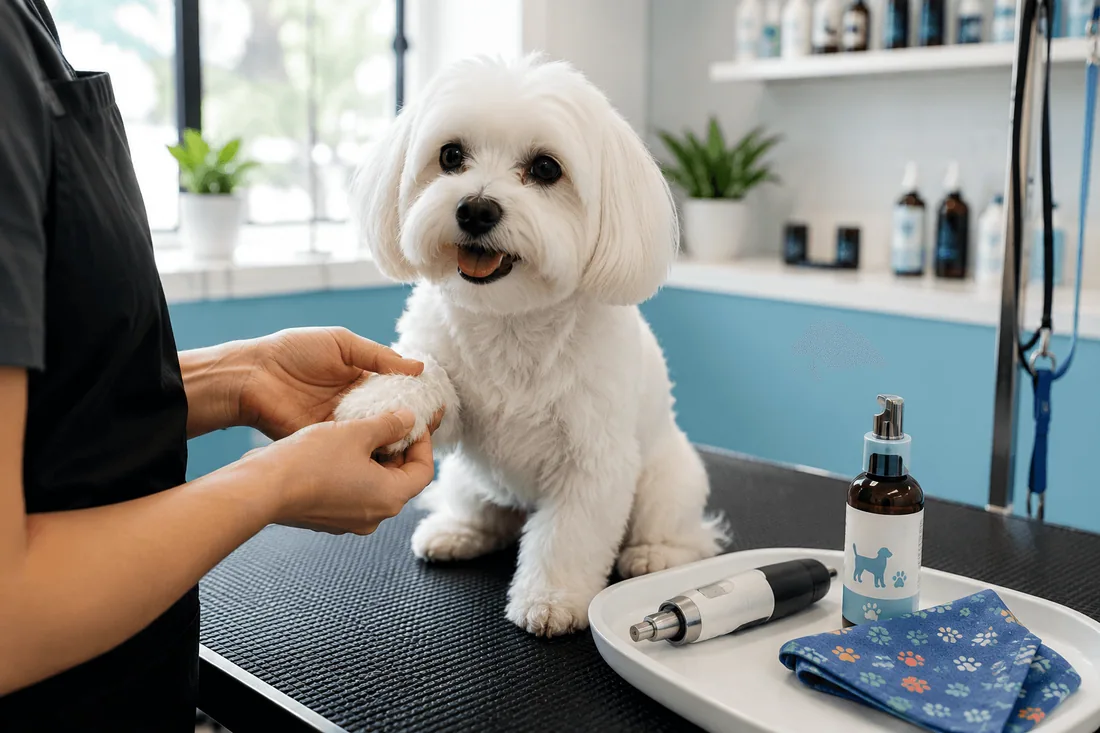
A dog grooming shop in Portland added one checkbox to their booking form: "Add nail grinding (+$12)." No pitch, no popup, no follow-up email. Just a checkbox that shows up after the customer picks a time slot. Within 60 days, 34% of bookings included the add-on. That's an extra $408 a month from a single line item that took 3 minutes to configure.
The gap between a $45 booking and a $65 booking isn't better marketing. It's what happens between the moment a customer picks a time slot and the moment they hit "Book Now." Most Shopify booking setups skip that window entirely: customer picks time, customer pays, done. But that confirmation step is the highest-intent moment in the entire flow. The customer already decided to buy. They're not browsing. They're committed.
This article shows you exactly how to add product and service upsells to your Shopify booking form, which add-ons actually convert by industry, and how to price them so they increase your average order value without scaring off the booking.
Why the booking confirmation is your best upsell moment
There are three moments in a service business where you can offer an add-on: before the booking, during the booking, and after the booking. Most merchants focus on before (product page descriptions) or after (email follow-ups). Both work, but neither beats the confirmation step.
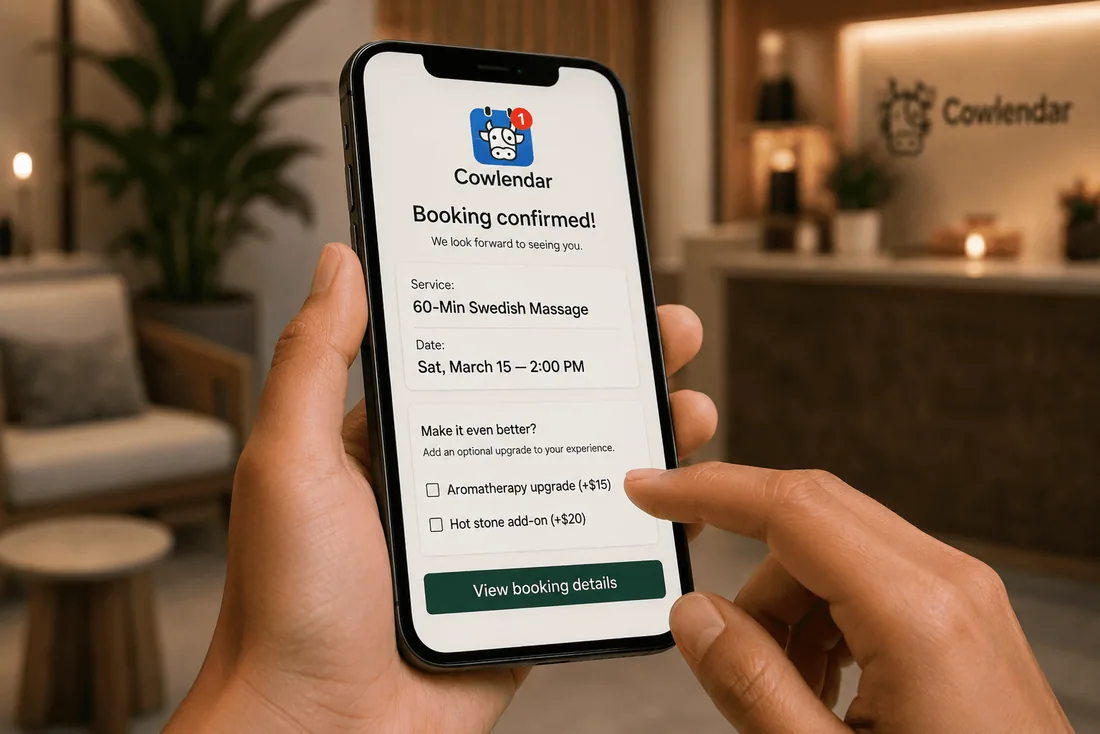
Here's why. When a customer reaches the confirmation page of a booking, three things are true at once: they've already committed to a time, they've already committed to a price, and they're still engaged with the screen. This is a fundamentally different psychological state than browsing a product page. The decision to book is made. The only question left is "do I want anything else?"
Compare this to a post-purchase upsell email. The customer has already left your site. They're checking email between tasks. The friction to add something is enormous: open email, click link, find the add-on, check out again. Conversion rates on post-purchase email upsells for service businesses typically land between 2% and 5%.
At the confirmation step? You're looking at 15% to 40% add-on attachment rates, depending on the industry and how relevant the upsell is. A barbershop offering a beard trim add-on at confirmation converts differently than a random product recommendation in a follow-up email.
The key insight: the booking flow is a funnel, and the confirmation page is the bottom. You've already done all the hard work to get the customer there. Adding a relevant upsell at that moment costs you nothing and risks almost nothing, because the customer can simply ignore it and proceed with their original booking.
Common mistakes that kill booking add-on conversions
Before you add a single upsell, understand what kills them.
Offering too many options. A barbershop that shows 8 add-ons at confirmation (beard oil, shampoo, conditioner, pomade, hot towel, scalp massage, eyebrow trim, nose wax) gets a lower attachment rate than one that shows 2 or 3. Decision fatigue is real. The customer came to book a haircut, not to build a custom bundle.
Pricing the add-on too close to the main service. If your massage is $90 and the add-on is $75, the customer pauses. That's a completely different financial commitment. The add-on should feel like rounding up, not doubling down. A general rule: keep add-ons below 30% of the main service price. A $15 aromatherapy upgrade on a $90 massage converts. A $75 "premium experience" upgrade does not.
Using generic product names. "Add-on 1" or "Extra service" tells the customer nothing. "Hot stone back treatment (+$20, 15 min)" tells them exactly what they get, what it costs, and how much longer it takes. Specificity converts.
Hiding the upsell behind an extra step. If the customer has to click "See add-ons", then browse a list, then click back to the booking, you've added friction. The best implementations show the upsells inline on the confirmation page itself, as checkboxes or toggles, with no extra navigation.
Offering upsells that don't match the service. A yoga studio offering a branded water bottle during a private session booking makes sense. Offering an unrelated e-book about meditation during a reformer Pilates class booking does not. The add-on must feel like a natural extension of what the customer just booked.
What makes a good booking upsell (by industry)
The add-ons that convert aren't the ones you wish customers would buy. They're the ones customers already ask your front desk about. Here's what works by vertical, based on what service businesses actually report.
Hair salons and barbershops. Deep conditioning treatment (+$15 to $25), beard trim add-on (+$10 to $15), scalp massage (+$10), take-home product bundle (shampoo + conditioner at 10% off). The conditioning treatment is the classic high-converter because it extends a service the customer is already getting.
Spas and massage. Aromatherapy upgrade (+$10 to $15), hot stone add-on (+$20), extended time (upgrade from 60 to 90 minutes, +$35 to $45), post-session tea and relaxation room (+$10). Extended time works particularly well because it doesn't feel like a new product. It's more of the thing they already want.
Tour operators and experiences. Photo package (+$25 to $40), equipment upgrade (e.g., premium snorkel gear, +$15), lunch add-on (+$20 to $30), private guide upgrade for small groups (+$50 to $80). The photo package is consistently the top converter for outdoor experiences because customers know they'll want the photos but forget to arrange it themselves.
Fitness and yoga studios. Mat rental (+$5), towel service (+$3), post-class smoothie (+$8 to $12), guest pass for a friend (+$15). Low price points work best here because the base class price is already a regular commitment. A $5 mat rental feels like nothing.
Dog grooming and pet services. Nail grinding (+$10 to $15), teeth brushing (+$8 to $12), flea treatment (+$15 to $20), bandana or bow (+$5). These convert at very high rates because pet owners already feel slightly guilty about "just the basic groom."
Consultants and coaches. Session recording (+$15 to $25), follow-up action plan document (+$30 to $50), extended session (+$40 to $60). The session recording is a quiet winner because clients often want to re-watch but don't think to ask.
How to add upsells to your Shopify booking form, step by step
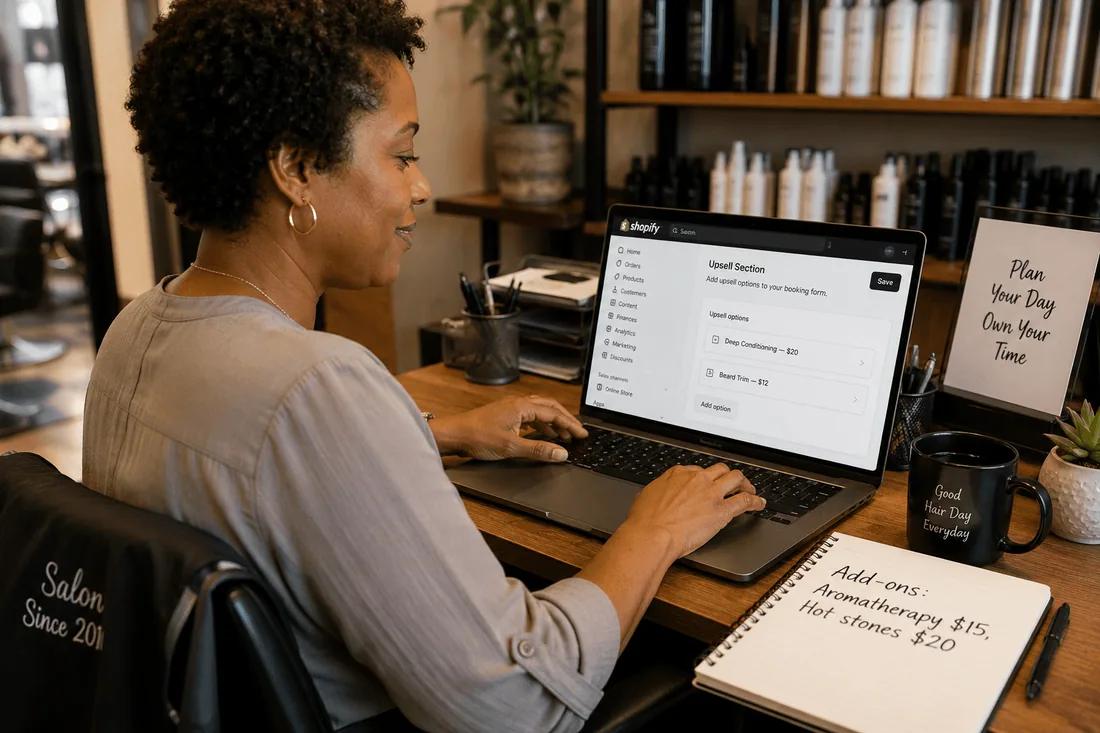
This walkthrough uses Cowlendar, which has a native upsell feature on the Elite plan and above. The same logic applies to other booking apps with add-on support (we'll compare them in the next section).
Step 1: Create your add-on products or services in Shopify first.
Before you touch the booking app, create the items you want to upsell as Shopify products. A $15 "Deep Conditioning Treatment" gets its own product listing. A $12 "Nail Grinding" gets its own listing. Set the price, add a photo if you have one, mark it as non-physical if it's a service. The booking app pulls from your Shopify catalog, so the product must exist there.
Step 2: Open the service you want to add upsells to.
In your Shopify admin, go to Apps, then Cowlendar, then My Services. Click Edit on the service that will show the upsells (e.g., "Men's Haircut" or "60-min Swedish Massage").
Step 3: Go to the Payments tab and find the Upsell section.
Scroll down until you see the Upsell area. This is where you configure what shows up during the booking flow.
Step 4: Understand the two upsell categories.
This is the critical distinction in Cowlendar's upsell system:
Products (physical or digital items from your Shopify catalog) are upsold at the confirmation page, before the customer completes the booking. The customer sees them as checkboxes while reviewing their booking details.
Services (other bookable services in Cowlendar) are upsold after the confirmation page. The customer completes their primary booking first, then sees the additional service offer.
Add each item to its correct category. If you put a product in the service upsell slot (or vice versa), it won't display properly.
Step 5: Customize the label, type, and display settings.
For each upsell, set a clear label that includes the price and a one-line description. "Deep Conditioning (+$20, adds 15 min)" converts better than just "Deep Conditioning." Adjust the type and any visual settings to fit your booking page style.
Step 6: Save and test.
Click Update before leaving the page. Then go to your live product page, start a test booking, and verify the upsell appears at the right moment. Check on mobile too. If 70% of your bookings come from phones (and for most service businesses, they do), the upsell needs to be visible and tappable without scrolling past it.
Bonus: Use custom question positioning to control where upsells appear.
Cowlendar's custom questions feature includes an "Upsell" field type that lets you adjust where the upsell block appears relative to your intake questions. If you collect allergy info or special requests before the booking, you can position the upsell above or below those questions. This matters because custom intake questions and upsells share the same confirmation flow, and the ordering affects what the customer sees first.
Best Shopify booking apps with native upsell support
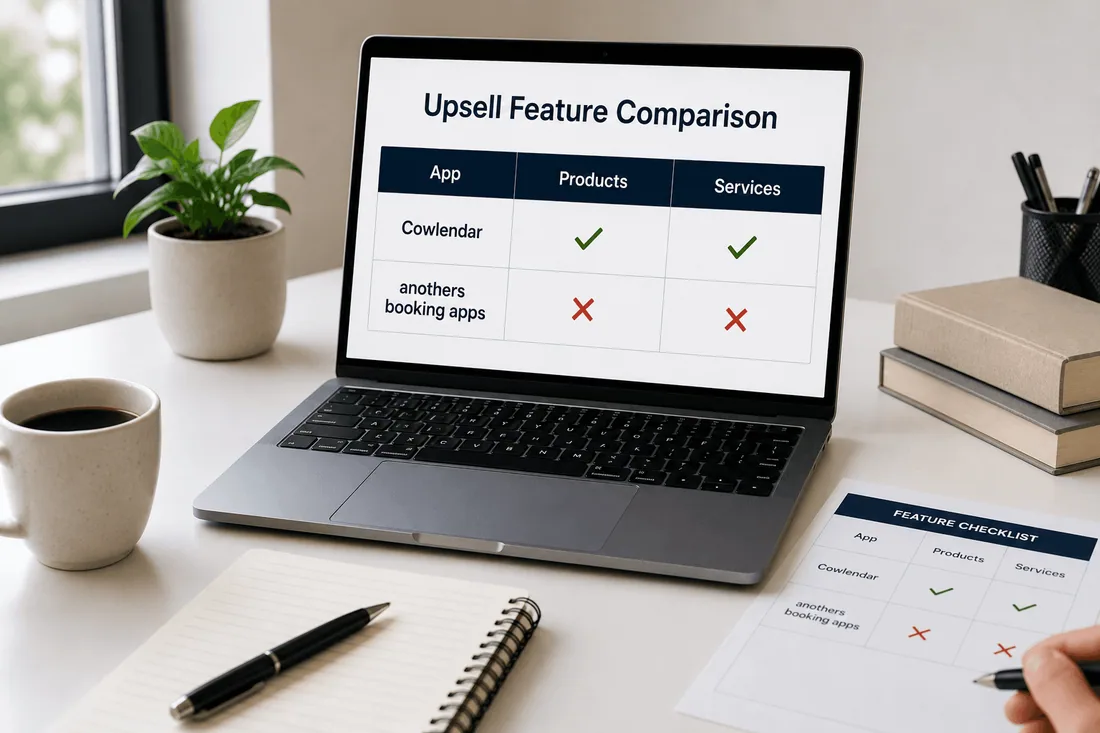
Not every Shopify booking app has built-in upsell capability. Here's who does, who doesn't, and what the differences are.
1. Cowlendar: most flexible upsell for products and services
Cowlendar supports upselling both products and services natively, with two distinct placement points in the booking flow. Products appear at confirmation, services appear after confirmation. This split matters because it means a spa can offer a product (aromatherapy candle, $18) at checkout and a service upgrade (hot stone add-on, $20) as a post-booking prompt, without cluttering a single screen.
Upsell feature available on: Elite plan ($25.99/month) and above.
What you can upsell: Any Shopify product (physical, digital, or service) and any other Cowlendar service.
Placement control: Products at confirmation page, services after confirmation page. Position adjustable via the custom questions upsell field type.
Best for: Businesses that sell both product and service add-ons (salons, spas, tour operators, pet groomers).
Shopify App Store: apps.shopify.com/cowlendar
2. Easy Appointment Booking: upsell with booking packs
Easy Appointment Booking added upsell support in late 2024. Early adopters reported a 6% increase in average order value within the first month. Their implementation focuses on attaching physical products to booking services.
Upsell feature available on: Pro plan ($29/month) and above.
What you can upsell: Physical products from your Shopify catalog, configured per event.
Placement control: Products appear during the booking process.
Best for: Businesses with straightforward product add-ons (e.g., a cooking class that upsells ingredient kits).
Shopify App Store: apps.shopify.com/appointments-and-bookings
3. BookThatApp: add-ons with inventory awareness
BookThatApp supports add-ons through a dedicated Add-ons section. You can import existing Shopify products or create new add-on items directly in the app. The inventory tracking is a differentiator: you can set capacity per add-on based on product inventory or variant inventory, which matters if you're upselling a physical item with limited stock (like a premium equipment upgrade for a rental).
Upsell feature available on: Premium plan ($49.95/month) and above.
What you can upsell: Any Shopify product, imported or created within the app. Supports variant-level images and capacity tracking.
Placement control: Add-ons display during the booking process if the service is linked to at least one add-on product.
Best for: Rental businesses and tour operators who need inventory-aware add-ons (e.g., only 5 premium snorkel sets available per day).
Shopify App Store: apps.shopify.com/bookthatapp
4. Sesami: no native upsell (workaround via Shopify checkout)
Sesami does not have a dedicated upsell feature within its booking flow. If you need add-ons, you'd rely on a separate Shopify checkout upsell app (like ReConvert or UpsellPlus) to show offers at the Shopify checkout page after the booking is added to cart. This works but separates the upsell from the booking context, which reduces relevance and conversion.
Best for: Studios and salons that prioritize POS integration and Sesami Flows over booking-stage upsells.
Comparison table
Feature | Cowlendar | Easy Appt Booking | BookThatApp | Sesami |
|---|---|---|---|---|
Native upsell in booking flow | ✅ | ✅ | ✅ | ❌ |
Product upsell (physical/digital) | ✅ | ✅ | ✅ | ❌ |
Service upsell (other bookable services) | ✅ | ❌ | 🟡 | ❌ |
Upsell plan requirement | Elite ($25.99) | Pro ($29) | Premium ($49.95) | N/A |
Upsell placement control | ✅ (two points + custom positioning) | 🟡 | 🟡 | ❌ |
Inventory-aware add-ons | 🟡 (via Shopify inventory) | 🟡 | ✅ (native capacity tracking) | ❌ |
Custom labels and descriptions | ✅ | ✅ | ✅ | ❌ |
The gap between apps that have native booking upsells and apps that don't is meaningful. When the upsell lives inside the booking flow, the customer sees it in context ("You're booking a 60-min massage. Add hot stones?"). When it's a separate Shopify checkout extension, the context is lost ("You have 1 item in your cart. You might also like...").
Tips for maximizing add-on revenue without annoying customers
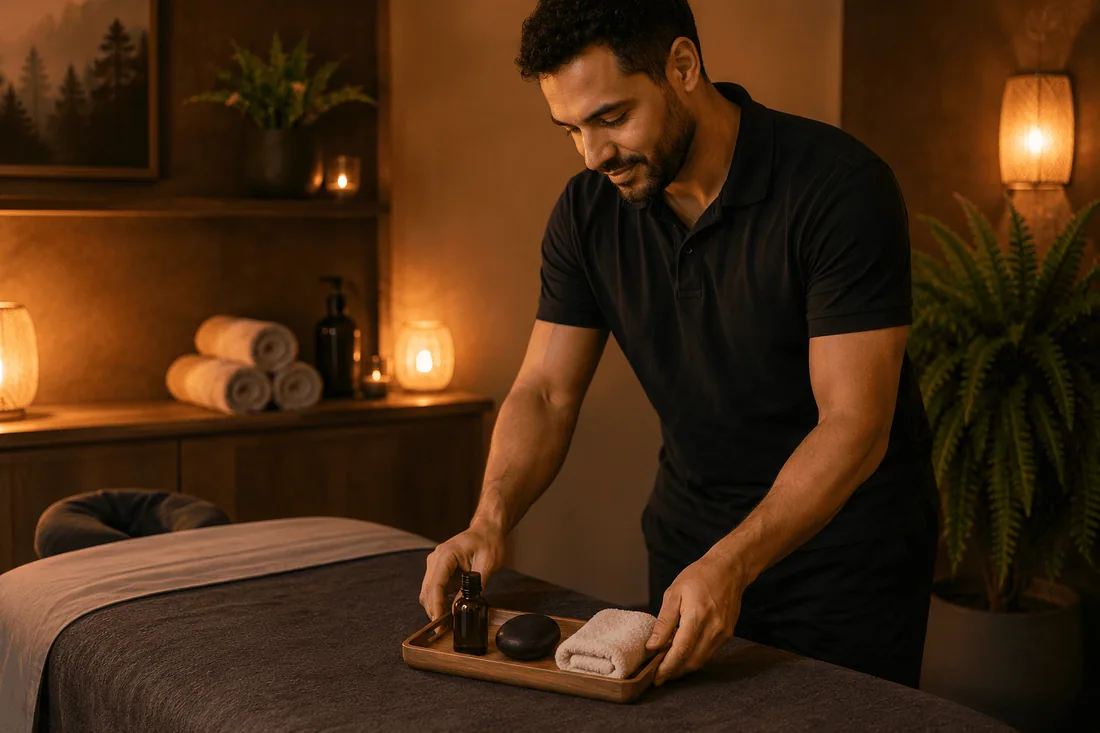
The line between a helpful suggestion and an annoying upsell is thinner than you think. Here are the rules that keep you on the right side.
Limit to 2 to 3 add-ons per service. If your massage service could theoretically upsell aromatherapy, hot stones, extended time, CBD oil, a robe rental, and a post-session smoothie, don't show all six. Pick the 2 or 3 with the highest historical attachment rate and rotate the others seasonally. One good option converts better than six overwhelming ones.
Price add-ons as round numbers or as a percentage bump. "$15 aromatherapy" converts better than "$14.99 aromatherapy." And "$15 on a $90 massage" (16.7% bump) converts much better than "$40 on a $90 massage" (44% bump). Stay under 30% of the base price.
Write the label in terms of what the customer gets, not what it is. "Beard trim, $12" is fine. "Clean neckline and shaped beard edges, $12" is better. Describe the outcome, not just the item.
Update your add-ons seasonally. A "Winter Hydration Boost" conditioning treatment in January converts better than a generic "Deep Conditioning" year-round. Seasonal framing creates urgency and relevance without discounting.
Track your attachment rate weekly, not monthly. If you launch an add-on and check results 30 days later, you've lost a month of optimization. Check attachment rates every week. If an add-on is below 10% after two weeks, either the price is wrong, the label is unclear, or it doesn't match the service.
Never make add-ons feel mandatory. The booking flow should make it effortless to skip the upsell and proceed. If the customer feels like they're being slowed down or pressured, they won't just skip the add-on. They'll abandon the booking entirely.
Test product upsells vs. service upsells separately. In Cowlendar, products and services display at different points. Track each independently. You might find that product upsells (candles, retail items) convert at 25% while service upsells (extra 15 minutes) convert at 10%, or vice versa. The data will tell you where to invest.
FAQ: upselling during Shopify bookings
Do booking upsells actually increase average order value?
Yes. The range depends on industry and add-on relevance, but most service businesses see a 10% to 25% lift in average booking value when they add 1 to 3 well-priced, well-positioned upsells. A pet grooming shop adding a $12 nail grinding to 35% of bookings on a base price of $45 nets an extra $4.20 per booking on average. Over 100 bookings a month, that's $420 in revenue from a setting that took 5 minutes to configure.
Can I upsell services (not just products) during a booking?
It depends on the app. Cowlendar supports both product and service upsells natively, with services displayed after the confirmation page. BookThatApp supports add-on products but not service-to-service upsells in the same way. Easy Appointment Booking focuses on product upsells. If upselling a second bookable service (like adding a facial to a massage booking) matters to your business, check that your booking app explicitly supports it.
Will upsells slow down my booking flow and hurt conversion?
Not if you implement them correctly. The upsell should appear as an optional element on a page the customer was already going to see (the confirmation page). It shouldn't add a new page, a new step, or a new loading screen. If the customer can book their original service in the same number of clicks whether or not they add an upsell, your conversion rate stays intact.
What's the best price point for a booking add-on?
Keep it under 30% of the base service price. On a $50 haircut, $10 to $15 add-ons convert best. On a $150 spa treatment, $20 to $40 add-ons hit the sweet spot. Anything above 50% of the base price starts to feel like a separate purchase decision, and the customer hesitates.
Can I show different upsells for different services?
Yes. In Cowlendar, upsells are configured per service. Your "Men's Haircut" can show beard trim and styling product add-ons, while your "Women's Color" shows conditioning treatment and take-home color care kit. Each service has its own upsell configuration in the Payments tab.
How do I know if my upsell is working?
Track two numbers: attachment rate (percentage of bookings that include the add-on) and incremental revenue per booking. If your attachment rate is below 10% after two weeks, something needs to change: the price, the label, the positioning, or the relevance to the service. If the attachment rate is above 20%, you likely have room to add one more option or test a slightly higher price.
Conclusion
The highest-leverage change you can make to your booking revenue isn't a new marketing channel, a price increase, or a redesigned product page. It's a single checkbox at the moment your customer is most ready to say yes. A well-chosen add-on at the confirmation step converts at rates that email upsells and post-purchase flows can't match, because the customer is already committed, already engaged, and already on the page.
If you want to add product and service upsells directly inside your Shopify booking flow, Cowlendar supports both natively starting on the Elite plan. Here's how to set it up, or try it: apps.shopify.com/cowlendar
Originally published on the Cowlendar blog. This article keeps its original publication history; the page layout has been refreshed.
Originally published May 8, 2026.



 Built for Shopify


