

A plumbing company in Phoenix, AZ has four technicians and a Shopify store where it sells water filters, pipe repair kits, and branded merchandise alongside its service appointments. The company currently handles bookings through a mix of phone calls, text messages, and a contact form on its website. The office manager spends 2.5 hours per day scheduling appointments, confirming addresses, and reminding technicians where to go. Last month, two technicians drove to the wrong address because the booking confirmation email did not include the full service address. The wasted trips cost $180 in fuel and 3 hours of lost billable time. The company also lost a $420 water heater installation because the client booked through the contact form and never received a confirmation, so the client assumed the appointment was not scheduled and called a competitor.
This is the reality for most in-home and mobile service businesses on Shopify: the booking process is fragmented, manual, and prone to errors that cost real money. Plumbers, cleaners, HVAC technicians, therapists, massage practitioners, electricians, and any service provider who travels to the client's location needs a booking system that handles address collection, travel logistics, technician assignment, and automated communication. Here is how to set that up on Shopify.
Why In-Home Service Bookings Are Different From Salon Bookings
A salon books one client in one chair at one location. An in-home service business books one technician at one client's address at one time, with drive time between appointments, variable service durations depending on the job, and the possibility that the technician needs specific equipment for the specific location. The booking system needs to handle these logistics without requiring a dispatcher to manage every step.
Drive time between appointments is a scheduling constraint
A cleaning company that sends a team to three homes per day cannot schedule the second appointment at 10:00 AM if the first appointment starts at 9:00 AM and the drive between locations is 25 minutes plus a 2-hour cleaning. The booking system needs to account for travel time, or the dispatcher has to manually block travel gaps in every technician's schedule. A 2024 Field Service Management benchmark report found that the average field service company loses 18% of productive time to poor scheduling, which translates to roughly 7 hours per week per technician in wasted capacity.
Service addresses must be collected at the time of booking
When a client books a plumbing repair through a contact form, the office manager has to call back to get the address, the type of problem, the age of the home, and whether there is a basement or crawlspace. This back-and-forth adds 10 to 15 minutes per booking and creates a point where the client can abandon the process. A booking form that collects the service address, the type of service needed, and any relevant details at the time of booking eliminates this friction entirely.
Technicians need to know the job before they arrive
A therapist who travels to clients' homes needs to know whether the session is individual or couples, whether the client has mobility limitations that affect room setup, and whether there are pets in the home. An electrician needs to know whether the job is a panel upgrade or a outlet installation, because the time, tools, and parts are completely different. The intake form at the time of booking should collect this information and pass it to the technician automatically.
How to Set Up In-Home Service Bookings on Shopify

Step 1: Create a service listing for each type of in-home service
Each service your company offers should be a separate listing in your booking app. A cleaning company might list: Standard Cleaning (2 hours), Deep Clean (4 hours), Move-In/Move-Out Cleaning (5 hours), and Post-Construction Cleanup (6 hours). A plumbing company might list: Drain Cleaning (1 hour), Water Heater Installation (2 hours), Pipe Repair (1.5 hours), and Emergency Plumbing (variable).
The service listing should include the service name, the estimated duration, the base price, and any prerequisites (e.g., "Clear access to the water heater before the technician arrives"). Cowlendar lets you create unlimited service listings on all plans, including the free plan, with custom durations and pricing per service.
Step 2: Add an intake form that collects the service address and job details
The intake form is the most important part of an in-home booking system. It replaces the phone call where the office manager asks "What's the problem? What's your address? Do you have a basement?" The form should collect:
The service address (full street address, city, state, zip code). The type of service or problem. Any relevant details (age of the home, number of rooms for cleaning, type of pet for therapists, accessibility requirements). Preferred date and time. Whether the client is a new or returning customer.
Cowlendar supports custom intake questions on every plan, including file upload so clients can send photos of the problem (e.g., a photo of the leaking pipe, a photo of the room to be cleaned). For more on intake form best practices, see our guide on key features your Shopify booking app must have to retain clients.
Step 3: Assign technicians to services based on availability and specialization
If you have multiple technicians, each one should have their own availability calendar in the booking app. The system should only show time slots when the assigned technician is available. A plumbing company with four technicians might assign the water heater installation to the senior technician who is certified for gas line work, while drain cleaning jobs can go to any available technician.
Cowlendar supports multiple providers with individual availability calendars. When a client books a service, the system checks which technicians are available at the requested time and either assigns the job to a specific technician or lets the client choose from available providers. This eliminates the manual scheduling step where the office manager checks each technician's calendar and assigns the job.
Step 4: Set up automated address confirmation and directions
After the client books, the confirmation email should include the full service address, a map link, the estimated service duration, what the technician will need access to, and the cancellation policy. This single email replaces the phone call where the office manager confirms the address and gives the technician directions.
Cowlendar sends automated confirmation emails immediately after booking, with all the details the client and technician need. The confirmation includes the service address from the intake form, the scheduled date and time, and the service details. For more on automated communication, see our guide on how to reduce no-shows with booking reminders.
Step 5: Add a travel fee or service radius rule
If your company charges a travel fee for locations outside a certain radius, you need to communicate that fee at the time of booking. There are two approaches: flat-rate travel fees (e.g., $25 for locations more than 15 miles from your office) or zone-based pricing (e.g., $0 for 0-10 miles, $15 for 10-20 miles, $30 for 20-35 miles). The travel fee should be displayed on the booking page so the client knows the total cost before they confirm.
Cowlendar lets you add custom line items to bookings, including travel fees. You can create separate service listings for different zones (e.g., "Standard Cleaning - Local" and "Standard Cleaning - Extended") with different prices that include the travel fee. For more on travel fee strategies, see our guide on how mobile salons can handle service zones and travel costs on Shopify.
Step 6: Collect a deposit to reduce no-shows
In-home service no-shows are more expensive than salon no-shows because the technician has already driven to the location. A plumber who drives 30 minutes to a scheduled repair and finds no one home has lost 30 minutes of drive time plus the opportunity cost of the slot. A deposit of $25 to $50 at the time of booking creates a financial commitment that makes the client more likely to show up. If they cancel with proper notice, you refund the deposit. If they no-show, you keep it.
Cowlendar supports deposits on all paid plans. You can set deposit amounts per service or per booking, and the deposit is collected at the time of booking through Shopify's checkout. For more on deposit strategies, see our guide on 5 powerful strategies to reduce no-shows and boost sales.
Best Shopify Booking Apps for In-Home Service Businesses
Cowlendar
Cowlendar is the most feature-rich Shopify-native booking app with 22,500+ active merchants, a 4.9-star rating across 2,056+ reviews, and a Built for Shopify badge. It supports custom intake questions with file upload on every plan, multiple provider scheduling, deposits and pre-payment, automated email reminders, and Google Calendar two-way sync. The free plan covers all features with a free plan with all features. All paid plans include every feature with no feature gating; the only difference is the monthly booking revenue cap: Starter ($13.99/month) up to $1,000 revenue, Basic ($29.99/month) up to $3,000 revenue, and Growth ($59.99/month) up to $10,000 revenue.
For an in-home service business, Cowlendar's custom intake forms are the key differentiator. A plumbing company can collect the type of plumbing issue, photos of the problem, the age of the home, and whether there is a basement or crawlspace. A cleaning company can collect the number of rooms, whether there are pets, and any areas to avoid. This information is passed to the technician automatically, eliminating the pre-visit phone call.
BookThatApp
BookThatApp has been on Shopify for 15+ years and specializes in resource allocation and scheduling. It handles date-range bookings, multi-day scheduling, and resource-level tracking (assigning technicians to specific jobs). BookThatApp's strength is its mature handling of scheduling logic, including buffer times between appointments and resource availability. Pricing starts at $25/month (Lite plan), with Premium at $49.95/month and Business at $110/month.
BookThatApp's advantage for in-home services is its resource allocation system, which lets you assign technicians to specific services based on availability, specialization, and location. Its limitation is the lack of custom intake forms, which means you still need a separate system to collect job details from the client before the appointment.
Sesami
Sesami focuses on multi-practitioner scheduling and includes Sesami Flows, which creates guided booking funnels. Pricing starts at $19/month (Small plan), with Pro at $129/month and Premium at $299/month. Sesami's strength is its visual flow builder, which creates a polished step-by-step booking experience.
For in-home service businesses, Sesami's flow builder can guide clients through service selection, technician selection, and intake form completion. However, the Pro plan at $129/month is expensive for small service businesses, and Sesami does not have a free plan. For businesses with an average booking value above $300, the Pro plan cost is recoverable with a single additional booking per month. For businesses with lower average values, the math does not work.
Meety
Meety is the simplest option with a free plan that offers unlimited appointments (limited to 1 service). Paid plans start at $14/month (Starter), with Business at $27/month and Enterprise at $47/month. Meety handles one-on-one appointments without the complexity of multi-provider scheduling or custom intake forms.
For solo operators (a single therapist, a solo plumber, a one-person cleaning service), Meety covers the basic scheduling needs. Its limitation is the lack of advanced features: no deposits, limited intake form customization, and no multi-provider scheduling. If you are a solo operator who just needs a booking page, Meety works. If you have a team, you will outgrow it quickly.
Tips for Managing In-Home Service Bookings
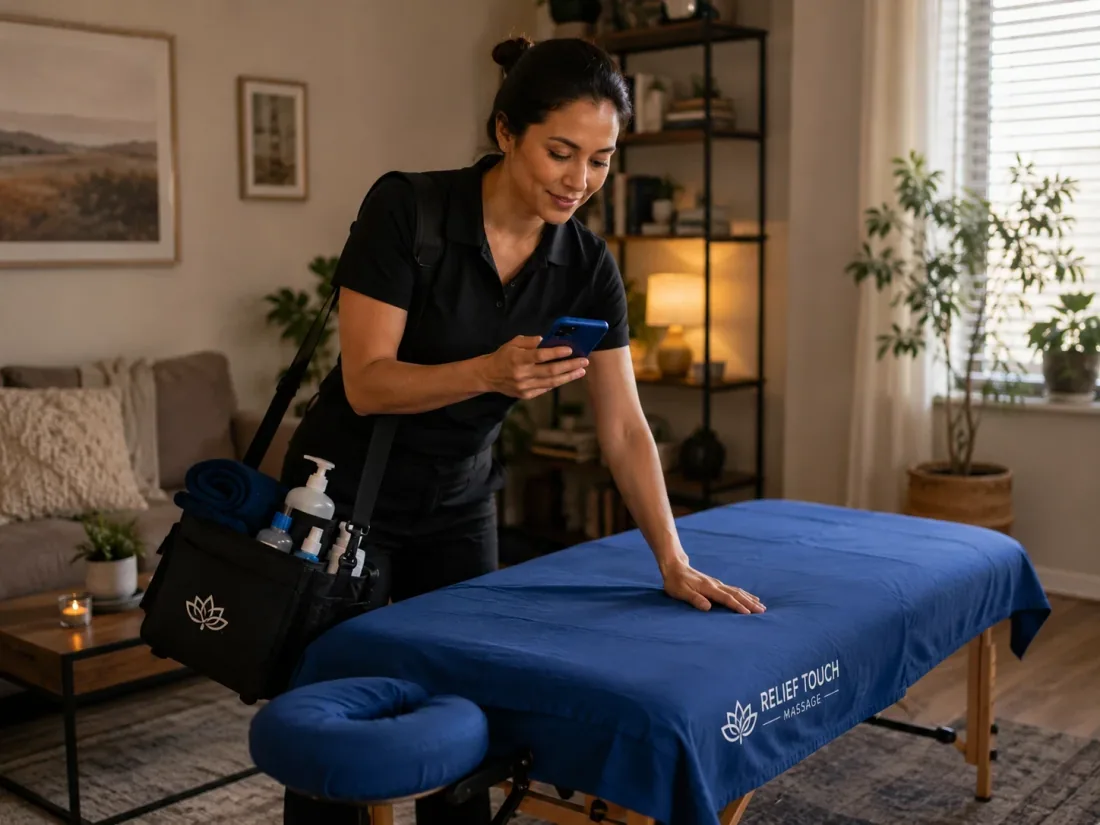
Build travel time into your scheduling logic
Every appointment should have a buffer between the end of one service and the start of the next. A cleaning company that schedules a 2-hour clean at 9:00 AM and another 2-hour clean at 11:00 AM has zero buffer for travel. If the first clean runs 15 minutes over or the drive between locations takes 20 minutes, the second appointment starts late. Build 30 to 45 minutes of buffer between appointments to account for travel, cleanup, and setup time.
Use photos to scope the job before you arrive
Ask clients to upload photos of the area or problem at the time of booking. A plumber who sees a photo of a corroded pipe can bring the right parts. A cleaner who sees a photo of a large open-plan kitchen knows to allocate more time. A therapist who sees photos of the room can plan the session setup. Cowlendar's file upload feature on the intake form handles this on every plan.
Send a day-before reminder with the full address and technician name
The reminder should include the technician's name, the confirmed service address (with a map link), the estimated arrival window, and what the client should have ready (e.g., "Clear access to the water heater" or "Please secure pets in a separate room"). This reduces the number of calls the office manager takes on the morning of appointments.
Track revenue per technician to identify scheduling inefficiencies
If one technician generates $800 per week and another generates $1,200 per week, the difference is likely a scheduling issue, not a performance issue. The lower-performing technician may have more travel time between appointments, more small jobs that do not justify the drive, or gaps in their schedule that could be filled. Cowlendar's booking dashboard shows revenue per provider, which makes it easy to spot these patterns.
Offer online booking 24/7 to capture after-hours inquiries
Most in-home service clients search for a plumber or cleaner at 9:00 PM when they notice the leak or the mess, not during your office hours. If your booking system only accepts phone calls during business hours, you lose those clients to whatever competitor has an online booking page. An online booking page that works 24/7 captures these inquiries and converts them into scheduled appointments without any manual intervention.
FAQ
Can I set up in-home service bookings on Shopify without a developer?
Yes. Cowlendar installs from the Shopify App Store in under 5 minutes and requires no coding. You create your service listings, add your intake form questions, set your availability, and embed the booking widget on your Shopify page. The entire setup takes 30 to 60 minutes for a solo provider and 2 to 4 hours for a multi-technician company. For a walkthrough of the setup process, this video by Andy's Guides covers how to set up a booking app on Shopify step by step.
How do I handle different service durations for different jobs?
Cowlendar lets you set a custom duration for each service listing. A drain cleaning takes 1 hour, a water heater installation takes 2 hours, and an emergency plumbing call takes 3 hours. The booking system blocks the correct amount of time on the technician's calendar based on the service duration, and the next available slot is calculated from there. This prevents overbooking and ensures realistic scheduling.
Can I collect a deposit for in-home services?
Yes. Cowlendar supports deposits on all paid plans. You can set a flat deposit amount (e.g., $30) or a percentage of the service price (e.g., 25%). The deposit is collected through Shopify's checkout when the client books. If the client cancels with more than 24 hours notice, you can refund the deposit. If they cancel late or no-show, you keep the deposit. This is especially important for in-home services where the travel cost is a sunk cost for the provider.
Can I assign specific technicians to specific service types?
Yes. Cowlendar supports multiple providers with individual availability calendars and service assignments. You can assign a certified gas technician to water heater installations, a senior electrician to panel upgrades, and general technicians to routine maintenance. The booking system only shows time slots when the qualified technician is available for the requested service.
How do I handle last-minute bookings for emergency services?
For emergency services (burst pipes, broken AC, urgent lockouts), you need a way to override the standard booking flow. Cowlendar supports instant booking, which lets clients book the next available slot without waiting for confirmation. You can also create a separate "Emergency Service" listing with a premium price and a shorter lead time. For more on instant booking, see our guide on why Shopify merchants need instant booking confirmation now.
Can I integrate my booking system with Google Calendar?
Yes. Cowlendar offers two-way Google Calendar sync on all plans. When a client books an appointment, it appears on the technician's Google Calendar. When the technician updates their availability in Google Calendar, it syncs back to the booking system. This means technicians can manage their schedule from their phone without logging into Shopify. For more on calendar sync, see our guide on how to fix double bookings with a Google Calendar two-way sync on Shopify.
Conclusion
The plumbing company in Phoenix that was losing $180 per month to wrong addresses and $420 per missed booking could have avoided both problems with a booking system that collects the service address, sends automated confirmations, and assigns technicians based on availability. In-home and mobile service businesses have different scheduling needs than salons or studios: they need address collection, travel time buffers, technician assignment, and job scoping at the time of booking. Cowlendar handles all of these requirements with custom intake questions, file upload, multiple provider scheduling, deposits, and automated reminders built into every plan. Whether you are a plumber, a cleaner, a therapist, or any service provider who travels to the client, the booking system should work as hard as you do. For a complete walkthrough of the setup process, watch Andy's step-by-step guide to get your in-home booking system running in under an hour.
Originally published on the Cowlendar blog. This article keeps its original publication history; the page layout has been refreshed.
Originally published Jun 14, 2026.




 Built for Shopify


