
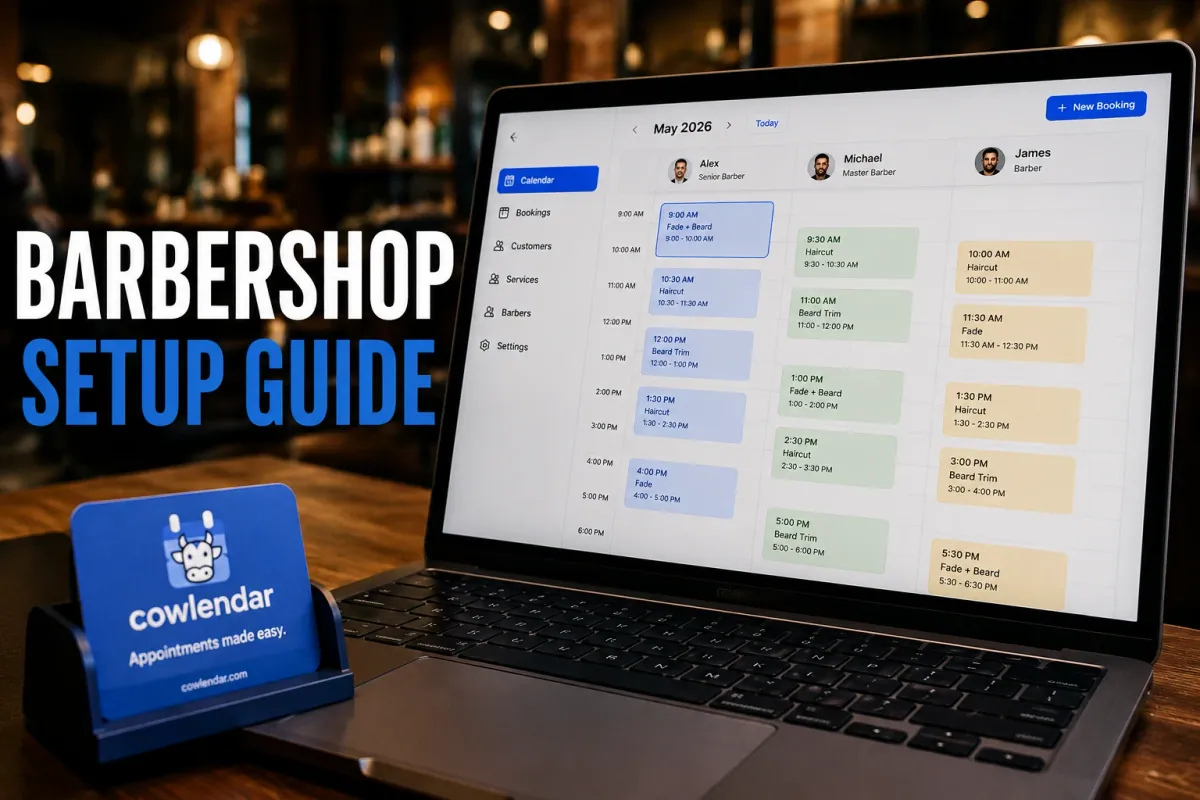
A 4-chair barbershop in Miami with three barbers and one owner is doing 60 appointments a week. The owner's phone rings constantly. He's missing 35% of those calls, according to SQUIRE's 2026 barbershop report, which means at least 20 appointments a week are either lost or going to a competitor who answers. Two of his barbers have different days off. One takes walk-ins only until 2pm, then switches to appointments. He's been running this on a paper book and a group chat. This guide covers how to move that entire operation onto Cowlendar on Shopify in an afternoon, including per-barber availability, upsell add-ons in the booking form, and automated reminders that reduce no-shows without calling anyone.
Why barbershops need a booking system on Shopify in 2026
According to Mangomint's 2024 analysis of 181,180 barbershop appointments, 77% are now booked online. A barbershop without online booking isn't being traditional: it's sending clients to the shop down the street that does have it.
The no-show problem is real but manageable. Zenoti's 2026 Beauty and Wellness Benchmark Report puts barbershop no-show rates at 4% and cancellation rates at another 4%, meaning around 8% of every booked week evaporates before scissors touch hair. At $43 per appointment (the US national average for 2026 per SQUIRE's State of Barbershops report covering 13.9 million appointments), a 3-chair shop doing 60 appointments a week loses roughly $860 a month to no-shows and late cancellations alone. Automated reminders with an easy reschedule link recover a meaningful portion of that without any manual work.
Setting this up on Shopify through Cowlendar takes less time than a full haircut. Here's the exact sequence.
Step 1: Create your barbershop services in Shopify
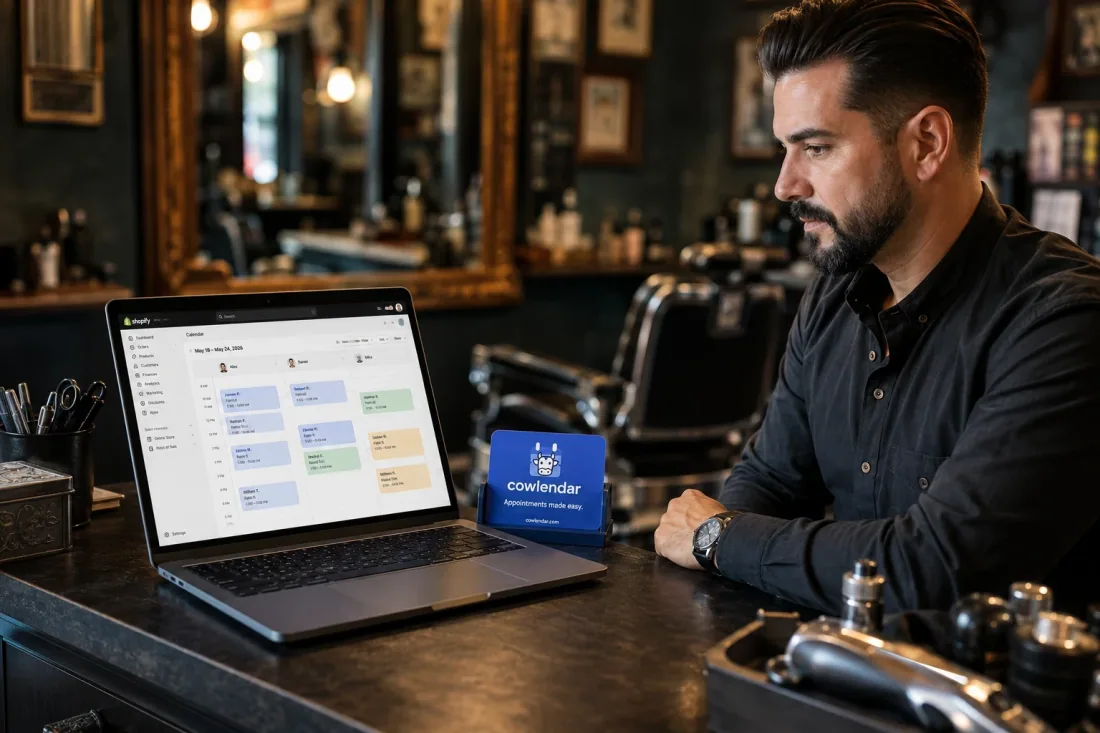
Before Cowlendar can do anything, each service needs to exist as a Shopify product. A standard barbershop setup typically has 3 to 5 products at minimum: a men's haircut, a beard trim, a shave, a kid's cut, and a haircut plus beard combination. Create each one in Shopify (Products > Add product), set the price, and leave inventory tracking off, since a service doesn't go out of stock.
Once each product is saved, go to Apps > Cowlendar > My Services > Create a new service and link it to the corresponding Shopify product. Set the duration (a men's haircut at 30 minutes, a beard trim at 15 minutes, a full shave at 45 minutes) and your standard hours.
At this stage, leave the availability mode on "Per service" for now. You'll switch it to "Per teammate" in Step 2 once your barbers are added to the system. Starting with "Per service" lets you verify the booking popup appears correctly on each product page before you layer in the per-barber complexity.
One thing to configure before moving on: buffer time. In each service's settings, add 10 to 15 minutes of buffer time after each appointment. This is the cleaning and reset window between clients: sanitizing the chair, sweeping the floor, prepping tools. Without it, the system will book a new client the moment the previous one's appointment ends, which doesn't leave time to turn the chair around. Buffer time is configured in the service's Availability tab or directly under Team > Edit teammate > Buffer time from the screenshot you saw earlier.
Step 2: Set up per-barber availability
This is the setup step most barbershop owners don't know exists. By default, Cowlendar treats all availability as shared across all barbers: one pool of time, one calendar. That breaks the moment you have two barbers with different days off, different shift hours, or different service specialties.
Switching to per-barber availability unlocks individual schedules per team member. Here's how:
First, go to Apps > Cowlendar > Team > Add a teammate for each barber. Enter their name and email. Send them the magic link from the Permissions tab so they can log in to the team portal and manage their own schedule without needing admin access to your entire Shopify store.
Second, edit each service (My Services > Edit) and change the availability mode from "Per service" to "Per teammate." This tells Cowlendar that each team member's schedule controls when that service is available, not a shared shop-wide block.
Third, go back to Team, click Edit on each barber, and go to the Availabilities tab. Set their weekly hours, days off, and any exceptions. A barber who works Tuesday through Saturday, 10am to 7pm, with Sundays and Mondays off, gets exactly that schedule. A part-time barber who works Friday, Saturday, and Sunday only gets just those three days. Each barber's personal calendar controls their portion of the booking availability.
From the Google integration section (Team > Edit > General tab), each barber can also connect their personal Google Calendar with two-way sync enabled. When that toggle is on, a personal appointment in their Google Calendar (a dentist visit at 2pm, a school pickup at 3:30pm) automatically blocks that slot on your Shopify booking page. No client can book a barber who's already committed elsewhere. For a full breakdown of how this sync works and how to troubleshoot it, Cowlendar's guide on preventing double bookings with Google Calendar sync covers the exact configuration.
From the Permissions tab (also shown in the screenshot above), you control precisely what each barber sees in their team portal. You can hide booking prices from barbers while still showing them their schedule. You can hide client contact information for privacy. You can allow or block barbers from creating manual bookings. You can hide the cancel and reschedule actions if you want all rescheduling to go through the owner. These nine permission checkboxes give the owner granular control without having to restrict the entire team's access.
Step 3: Add upsells to the booking form
A haircut booking is the moment of highest intent in a barbershop's sales flow. The client is already in checkout mode. Adding a beard trim, a scalp treatment, or a bottle of pomade at that exact moment converts better than any in-person upsell attempt after the client is already settled in the chair.
In Cowlendar, upsells are added as a question type inside the booking form. Go to My Services > Edit the haircut service > Advanced tab > Custom questions > Add a question > Field type > Upsell. This places a product upsell block inside the booking flow, where the client sees the add-on and can add it to their cart before confirming the appointment.
For a typical barbershop, three upsells are worth setting up: a beard trim (10 to 15 minutes added to the session), a hot towel shave (15 minutes, separate pricing), and a premium hair product from your retail shelf. The product upsell works because it surfaces the product at the moment a client is already spending money. A client who books a $43 haircut and adds a $15 beard trim represents a 35% ticket increase on zero additional marketing spend.
Value math: if a 3-chair barbershop does 60 appointments a week and 20% of haircut clients add a beard trim at $15, that's 12 upsells a week, $180 a week, $9,360 a year. From one booking form question.
Step 4: Set up automated email reminders
35% of barbershop calls go unanswered every month, according to SQUIRE's 2026 data. No-shows don't happen because clients are disrespectful. They happen because no one reminded them. The fix is an automated reminder that goes out 24 hours before the appointment with a clear reschedule link.
In Cowlendar, go to Settings > Email Settings and toggle on automated reminders. Choose 24-hour timing as a baseline. For a barbershop specifically, this timing matters: most clients book their Thursday or Friday slot (the two busiest days in the week, accounting for nearly 40% of all barbershop appointments per Mangomint data) during the previous Sunday or Monday evening. A 24-hour reminder sent on Wednesday or Thursday morning catches them while they can still reschedule rather than just not showing up.
The reminder email includes the appointment details, the barber's name, and a cancel/reschedule link. Clients who see the reminder and realize they can't make it will cancel, which frees the slot for someone else. That's a better outcome than a no-show.
For higher-value services like a full shave at $65 or a haircut-plus-beard package at $55, add a deposit requirement as an additional layer. A deposit doesn't need to be large to work. A $10 or $15 deposit changes the client's commitment to the appointment. According to RingMyBarber 2026 data, shops that introduced deposits saw cleaner schedules and more consistent daily revenue within the first 30 days. Serious clients don't hesitate at a small deposit. Low-commitment walk-in-minded clients self-select out, which is exactly what you want for time slots that have real cost if they're empty.
For the full setup walkthrough of reminders and deposits together, Cowlendar's guide to reducing no-shows on your Shopify booking store covers both configurations step by step.
Tips for running the booking system well
Let barbers manage their own availability. The team portal permission that says "Let team member handle his own availability on team portal" is worth enabling from day one. A barber who can block their own personal time without calling the owner reduces admin friction for everyone. The owner keeps visibility over all bookings from the main Cowlendar dashboard, but each barber manages their calendar independently.
Use the partial booking view on busy days. On Thursdays and Fridays when demand peaks, don't show the full week of availability to new clients booking online. Configure a shorter booking window (7 to 14 days ahead) in your service settings. This prevents the calendar from filling up with bookings 6 weeks in advance, which have higher no-show rates than same-week bookings.
Match your service durations to reality, not aspirations. If your fastest barber can cut hair in 25 minutes and your slowest needs 40, don't set a single 30-minute service for both. Create separate products per barber if the duration difference is significant, or build buffer time that absorbs the variance. Clients arriving to find the previous client still in the chair is a friction point that compounds across 60 weekly appointments.
Review your booking data weekly. Cowlendar's admin view shows which barbers are fully booked and which have consistent gaps. A barber who's 90% booked every week is a candidate for a price increase or extended hours. A barber with consistent Wednesday afternoon gaps is an indication that either the slot isn't being promoted or that the demand isn't there for that time window. This data is visible in your Shopify admin through Cowlendar without needing any additional reporting tools.
Use Shopify POS for walk-ins. Cowlendar's Shopify POS integration means your walk-in clients and online bookings live in the same system. When a walk-in arrives, the barber creates a manual booking through the team portal (or you run it through POS), the slot is blocked from online booking immediately, and the transaction records in Shopify alongside your booked appointments. This matters at the end of the week when you're reconciling revenue: all the money, from all sources, is in one place.
Collect a post-appointment review automatically. 65% of men stay with the same barber for over 3 years according to SQUIRE's 2026 data, but only if they had a good first experience. A follow-up email 2 to 3 hours after the appointment with a review request catches clients while the cut is still fresh. Cowlendar's email notifications can be configured to send post-appointment messages. Pair this with a link to your Google Business profile and the reviews compound over time into one of the strongest new client acquisition tools a barbershop has.
For barbershops running part-time staff or rotating shifts, the complete guide to managing part-time barber schedules without scheduling conflicts on the Cowlendar blog covers the specific availability configurations for irregular weekly patterns.
FAQ
Does Cowlendar work for walk-in clients as well as online bookings?
Yes. The team portal includes a manual booking feature that lets any barber log a walk-in directly from their phone or the barbershop's tablet. The walk-in appears in Cowlendar's booking list as a manual booking, blocks the slot on the calendar so no one else can book the same time online, and can include the client's contact info for future reminders. This is configured in the Permissions tab: "Let team member create manual bookings from team portal" and "Allow manual bookings on any service."
Can customers pick their specific barber when booking?
Yes. When availability is set to "Per teammate," each barber appears as a bookable option in the scheduling popup. Clients can see which barbers are available for their chosen time and select a preferred barber. If you'd rather assign barbers automatically without letting clients choose, use the "No Preference" teammate option, which auto-assigns the next available barber.
How do I prevent a barber's personal appointments from appearing as available?
Enable Google Calendar two-way sync for each barber's individual Google account. From Team > Edit the barber > General tab > Google integration > connect their Google account > toggle "Enable Google sync" on and make sure "2-way sync is enabled." Once active, any event in their personal Google Calendar (a dentist appointment, a kid's school pickup, a day off) automatically blocks that slot in Cowlendar. Clients booking online won't see those slots as available.
What happens if a client books the wrong barber?
Any admin can reschedule a booking from the Cowlendar bookings view. If you've given specific barbers the reschedule permission in their team portal settings, they can also move the booking themselves. The rescheduled booking updates the client's confirmation automatically. If your shop prefers that only the owner handles rescheduling, uncheck "Hide 'Reschedule' action on team portal" for all barbers, which removes the option from their view while leaving it available to admins.
Is Cowlendar free for barbershops?
Cowlendar has a free plan that supports up to a free plan with all features with all features included: enough to set up and test the complete booking flow before committing to a paid plan. The Starter plan at €13.99/month covers up to €1,000 in monthly booking revenue or 50 bookings, which is the practical starting point for a solo barber or a small shop building its online booking presence. All Cowlendar paid plans include every feature: per-barber scheduling, upsells, Google Calendar sync, deposits, reminders, and the team portal.
Conclusion
Most barbershops lose around 8% of their weekly bookings to no-shows and cancellations. That's recoverable with an automated reminder and a modest deposit policy. Most barbershop owners also spend hours a week managing their team's schedule manually (texts, calls, a shared paper book). That's recoverable with per-barber availability in Cowlendar, where each barber manages their own calendar from the team portal while the owner sees everything from the main dashboard. Getting the system set up takes an afternoon. Keeping it running takes almost nothing. Install Cowlendar free and get your first barber's calendar live before your next Thursday rush.
Originally published on the Cowlendar blog. This article keeps its original publication history; the page layout has been refreshed.
Originally published Jul 3, 2026.



 Built for Shopify


