
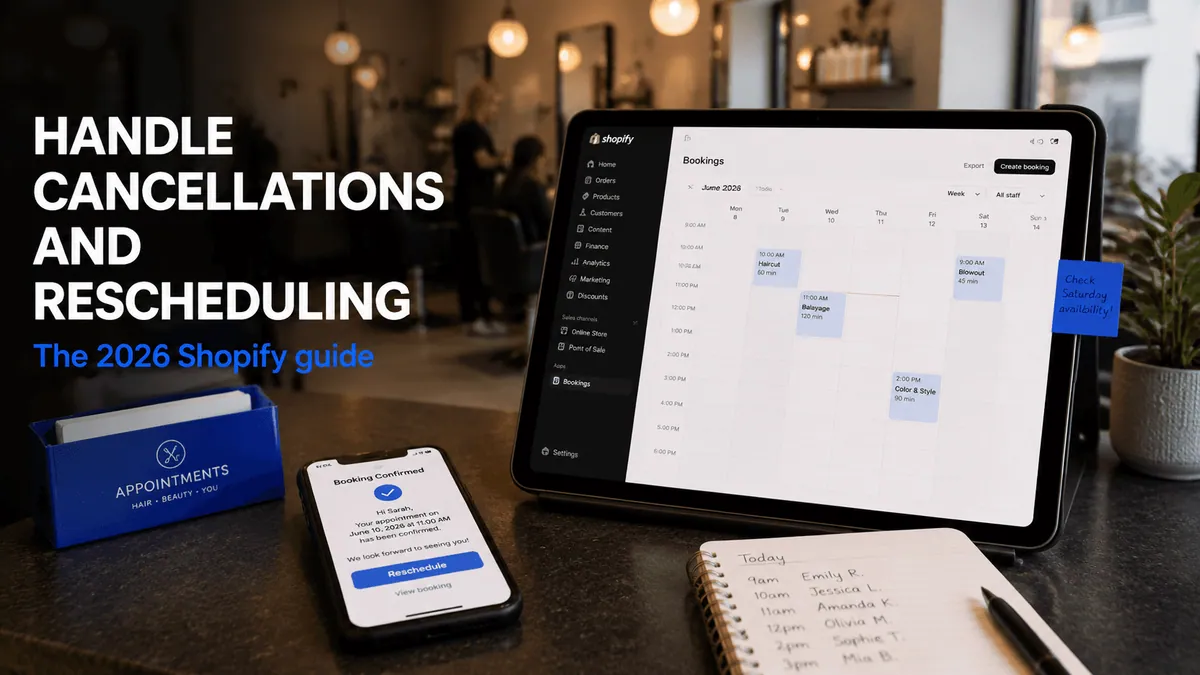
A 3-chair barbershop in Austin doing 40 appointments a week used to lose roughly 6 of those slots to no-shows every single week, each one a client who simply forgot and never called to cancel. The owner switched on customer self-service rescheduling in their booking app and watched no-shows drop within a month, because clients who can't make it now reschedule with two taps instead of just not showing up. This is the entire argument for fixing your cancellation and rescheduling flow on Shopify: it's not a customer service nicety, it's a direct fix for the most expensive leak in a service business calendar. Here's how to actually set it up.
Why this matters
A no-show costs you the full value of that slot, the prep time you spent on it, and the chance to book someone else in that window. A reschedule costs you almost nothing. Easy rescheduling reduces no-shows because customers can move the appointment instead of skipping it entirely, which is exactly why most modern scheduling software treats rescheduling as a retention feature, not a customer service afterthought.
The math is simple. If your no-show rate sits anywhere near the 10% to 20% range that's typical for unmanaged appointment books, and automated reminders alone cut no-shows by up to 14.9% according to scheduling software benchmarks, then a self-service cancel and reschedule link stacked on top of reminders is the difference between a calendar with predictable revenue and one with random holes in it every week.
There's also a trust dimension that's easy to overlook. Shopify's own research found that 94% of customers rated convenience as the most important aspect of their experience in 2024, and a cancellation flow that requires an email and a wait is the opposite of convenient. A customer who can fix their own booking in two taps walks away with a better impression of your business than one who had to chase you down, even if the appointment itself never happened.
Key challenges with manual cancellations

Every change becomes a support ticket
Without self-service, a client who needs to move their Tuesday appointment has to email or call you, wait for a reply, and then wait again while you find a new slot and confirm it. That's three touchpoints for what should be a 30-second action, and it's the single biggest source of "where's my confirmation" tickets for service businesses running bookings manually.
Cancellations without a clear policy invite disputes
If your cancellation policy isn't stated clearly at the time of booking, a client who cancels two hours before a paid session will assume a full refund is automatic. You're not in a strong position to enforce a 24-hour notice rule after the fact if you never communicated it before they paid.
No-shows quietly compound
A single no-show looks like a one-off. A 10% no-show rate on 40 weekly appointments is 4 lost slots a week, every week, which adds up to real annual revenue for any service business charging more than pocket change per session.
Reschedule links that don't actually check live availability
The worst version of self-service rescheduling shows a customer the same calendar they saw when booking, but doesn't account for the slot they're vacating or new bookings that came in since. That produces double bookings instead of solving the original problem. A 2026 review from a House of Golf customer in Australia specifically called out that letting customers cancel or reschedule their own appointments stopped their no-shows, which only works if the underlying availability check is accurate.
Support time disappears into rebooking, not selling
Every cancellation handled by email is time your team isn't spending on anything that grows the business. For a small team, even 15 minutes per manual reschedule adds up fast across a busy week, and it's the kind of cost that doesn't show up on a spreadsheet until you actually track it.
What to look for in a cancellation and rescheduling setup
Choose a setup where the cancel and reschedule link lives directly in the confirmation email, not buried behind a login or a separate request form. A 2026 Shopify App Store review from Kansai Fixer, a Cowlendar merchant, specifically praised having Cancel and Reschedule buttons built into their confirmation emails, calling out the ability to customize that text alongside the rest of their booking communications, which is the baseline a system needs to clear.
Choose a system that lets you set the cancellation window per service, not store-wide. A 2-hour haircut needs a different notice period than a 3-day equipment rental, and forcing one policy across every service either annoys your low-stakes clients or under-protects your high-stakes ones.
Skip a setup that doesn't notify you when a client reschedules or cancels. You still need visibility into your day even when the client is handling the change themselves, otherwise you'll show up expecting someone who quietly moved their slot to next week.
How to set this up on Shopify with Cowlendar
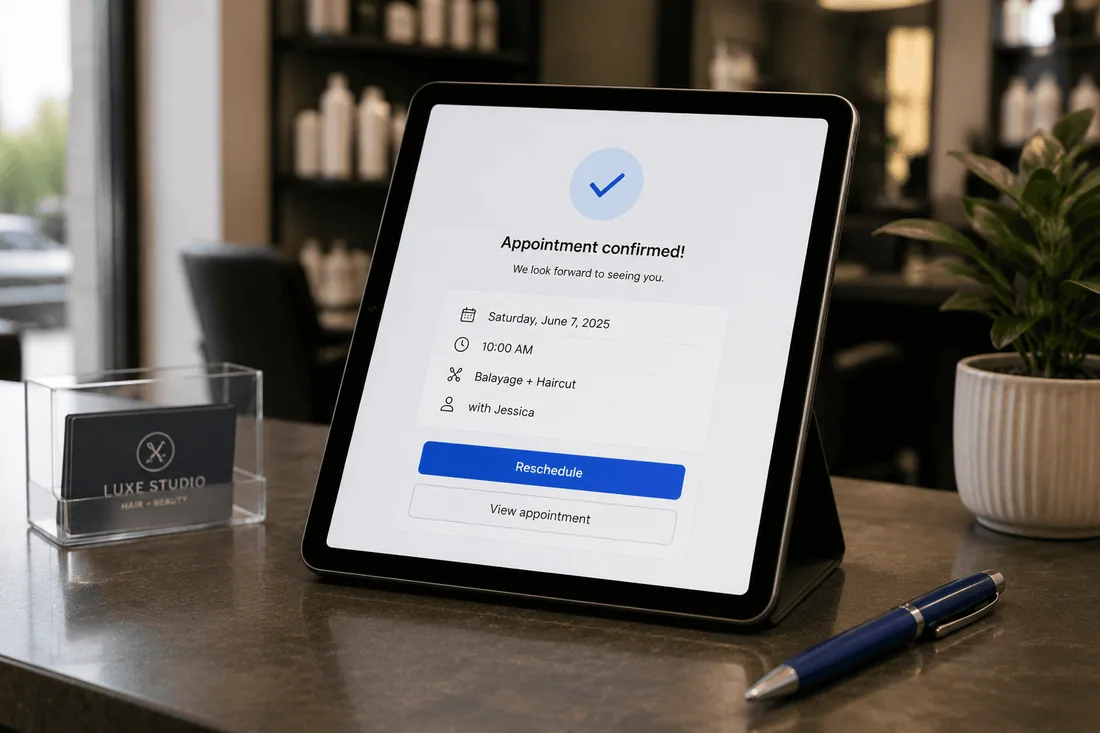
Step 1: Turn on cancel and reschedule for your service
In your Cowlendar dashboard, open the service you want to configure and enable the cancel and reschedule option. This is included from the Pro plan up, and once it's on, every booking confirmation for that service automatically includes both a reschedule link and a cancel link.
Step 2: Set your cancellation window
Decide how close to the appointment a client can still cancel or reschedule without contacting you directly. A 24-hour window works for most single-session services. Tour operators and equipment rental businesses typically need 48 to 72 hours since they can't easily fill a same-day cancellation the way a salon can.
Step 3: Write the policy into your confirmation email, briefly
State your policy once, in one sentence, at the time of booking. Something like "Need to change your time? You can reschedule up to 24 hours before your appointment using the link below" does the job without sounding like fine print. Save the longer explanation for your store's policy page, not the email.
Step 4: Test the full loop yourself
Book a test appointment, cancel it using the link a real customer would see, and reschedule a second test booking into a different slot. Confirm your calendar updates correctly and that you receive a notification for both actions. This single test catches the double-booking failure mode described above before a real client hits it.
Step 5: Decide your refund stance before the first real cancellation, not after
Cowlendar doesn't currently automate a partial refund or cancellation fee based on timing, so this part of the policy is a manual decision you'll need to apply yourself when a late cancellation comes in. Decide now whether late cancellations get a full refund, a partial refund, or none, and write that into the one-sentence policy line from Step 3. Making this decision after your first dispute means making it under pressure, with a frustrated customer waiting on a reply.
If you want to see this kind of setup applied to a real Shopify store from scratch, a recent step-by-step guide to building a Shopify booking system covers the full installation flow, including where the cancellation and reschedule settings typically live inside a booking app's service configuration. It's app-agnostic, so the screens won't match Cowlendar exactly, but the sequence of decisions is the same one you'll work through above.
Best Shopify apps for cancellation and rescheduling
Cowlendar builds the cancel and reschedule link directly into every confirmation email from the Pro plan up, with the cancellation window configurable per service rather than store-wide. Merchant reviews specifically credit this with cutting no-shows, since clients who can move their own slot rarely just skip it. Where Cowlendar is more limited is that it doesn't currently offer a standalone cancellation fee or partial-refund automation; that part still needs a manual policy decision on your end when a client cancels late.
BookThatApp has supported a reschedule and cancellation feature for years and merchants specifically call it out as one of the app's most valued capabilities, alongside resource allocation for multi-day rentals. It's a strong pick if your business runs longer bookings like tours or equipment rentals where the cancellation logic needs to account for multi-day blocks, not just a single timeslot. Setup has more configuration depth than most merchants need for a simple single-service business, which is the tradeoff for that flexibility.
Sesami includes customer rescheduling and cancellation as part of its core booking flow, and pairs it with Sesami Flows for automating what happens next, like triggering a follow-up email the moment a client cancels. It's a solid option if you already run a multi-practitioner business and want the cancellation event itself to kick off other automations. The price jump from its Small plan to its Pro plan is steep, and several of the more advanced automation features sit behind that higher tier.
Tips for success
Keep your policy to one sentence in the confirmation email and the reminder email. A full paragraph explaining your cancellation terms in every touchpoint reads as defensive, and customers skim past it anyway.
Send the reschedule link, not just a cancel link, in your reminder emails. If the only option a client sees is "cancel," some will take it simply because it's the path of least resistance, even when they'd have rescheduled if it had been equally easy. For the full reminder email structure that pairs with this, Cowlendar's guide to Klaviyo email flows for booking businesses breaks down exactly what to include in that reminder, including why the reschedule link belongs there and the cancellation policy doesn't.
Review your cancellation data monthly, not just when something goes wrong. If one specific service has a consistently higher cancellation rate than the rest, that's usually a signal about the service itself (price, duration, or timing) rather than something wrong with your cancellation process.
If you run a multi-person team, make sure the staff member assigned to a booking gets notified the moment a client reschedules, not just you as the store owner. A stylist or instructor who shows up expecting a client who moved to a different day is the same problem you're trying to solve for the customer, just shifted onto your team instead.
If double bookings are showing up alongside your rescheduling issues, they're often connected. A reschedule that doesn't check live availability correctly is one of the more common causes, and Cowlendar's guide to preventing double bookings walks through the other usual culprits.
FAQ
Can customers cancel their own Shopify booking without contacting me?
Yes, if your booking app supports it and you've enabled it for that service. With Cowlendar, this is available from the Pro plan up. Once enabled, the cancel link appears automatically in the customer's confirmation email, and you're notified the moment they use it.
Do customers get refunded automatically when they cancel?
This depends on your settings and your stated policy, not on the platform automatically deciding for you. Most service businesses set a window (commonly 24 to 48 hours before the appointment) inside which a cancellation is fully refundable, and outside of which it isn't, or is only partially refundable. You'll generally need to process refunds for late cancellations manually based on your own policy, since automatic blanket refunds regardless of timing tend to undercut the entire point of having a cancellation window.
Will allowing self-service rescheduling actually reduce no-shows?
Real merchant feedback says yes. A 2026 Shopify App Store review from a golf retail business specifically noted that letting customers cancel or reschedule their own appointments stopped their no-shows. The logic holds up generally: a customer who can't make it has a frictionless way to move the slot instead of just skipping it, which converts a wasted slot into a filled one on a different day.
What's a reasonable cancellation window for a service business?
For single-session services like haircuts, consultations, or fitness classes, 24 hours is standard and gives you enough notice to potentially fill the slot. For multi-day bookings like tours, equipment rentals, or vacation properties, 48 to 72 hours is more common since those slots are harder to refill on short notice. There's no universal rule. Look at how far in advance your specific service typically gets booked and set the window to give yourself realistic time to react.
Should I charge a fee for late cancellations?
Many service businesses do, particularly for higher-priced sessions or businesses with high no-show rates. A clearly stated late cancellation fee, even a modest one, tends to reduce casual no-shows because it converts an invisible cost (a wasted slot) into a visible one (money the customer would lose). If you go this route, state the fee plainly in your booking confirmation, not just on a policy page nobody reads.
Conclusion
Manual cancellations cost you support time and revenue you can't see until you add it up at the end of the month. A self-service cancel and reschedule link, paired with a clearly stated policy and the right cancellation window per service, turns most no-shows into rebookings instead of empty slots. If you're running bookings on Shopify and don't have this set up yet, Cowlendar includes cancel and reschedule from the Pro plan, and the full setup takes about ten minutes once you know which window to set.
Originally published on the Cowlendar blog. This article keeps its original publication history; the page layout has been refreshed.
Originally published Jun 18, 2026.




 Built for Shopify


